
This release of OnboardMe introduces a range of new features and bug fixes. The changes are outlined below.
New Features
Introducing the new Multi-User Onboarding workflow
Onboardings now support multiple recipients in a single workflow. Invite one or more people to complete an onboarding together, with granular Entity Level security controls that let you define exactly what each recipient can access and edit.
The onboarding experience remains the same—you're simply gaining flexibility in who participates and what they can see.
Recipients
We've introduced the concept of Recipients, the individual people who will access and complete the onboarding. Whether for themselves, or on behalf of a company or trust they're associated with.
When sending a new onboarding, you'll first be prompted to designate a Primary Recipient. Once you've captured their name, surname, and email, the rest of the onboarding form becomes available.
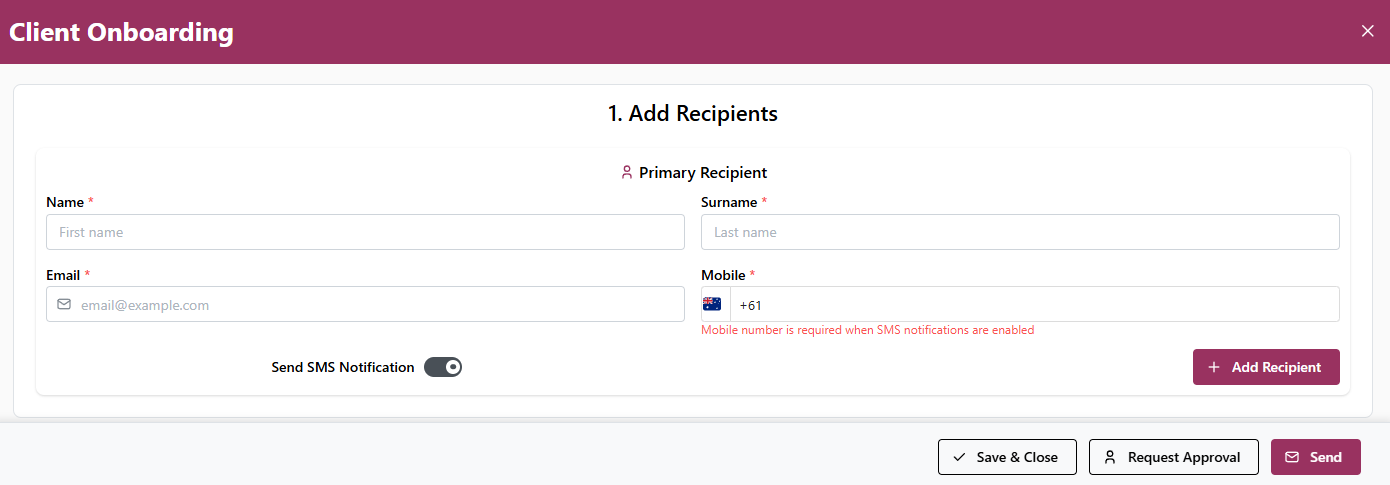
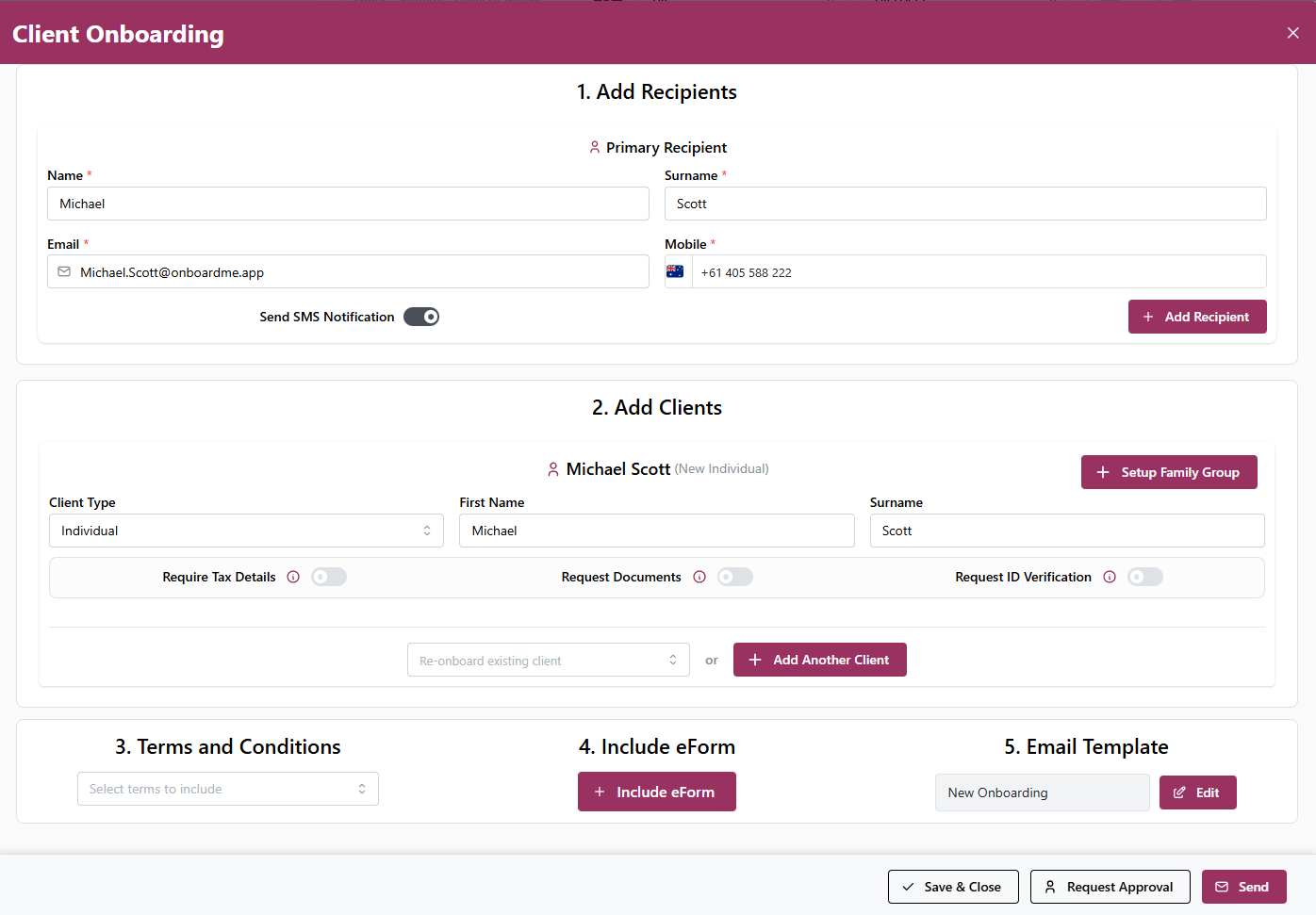
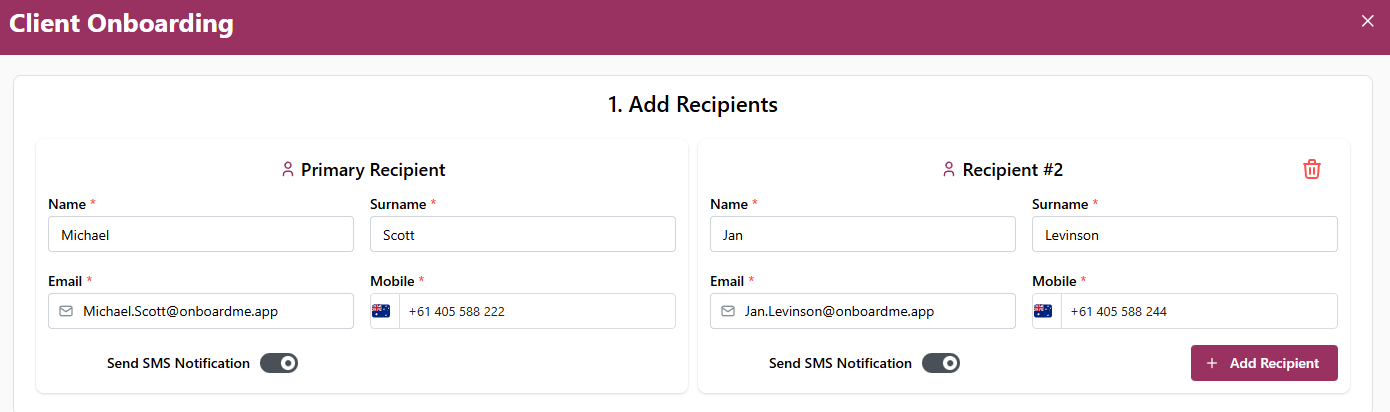
To add multiple recipients, click the + Add Recipient button in the bottom right of the Add Recipient section. Once you've added all recipients, proceed to Section 2 to set up your clients.
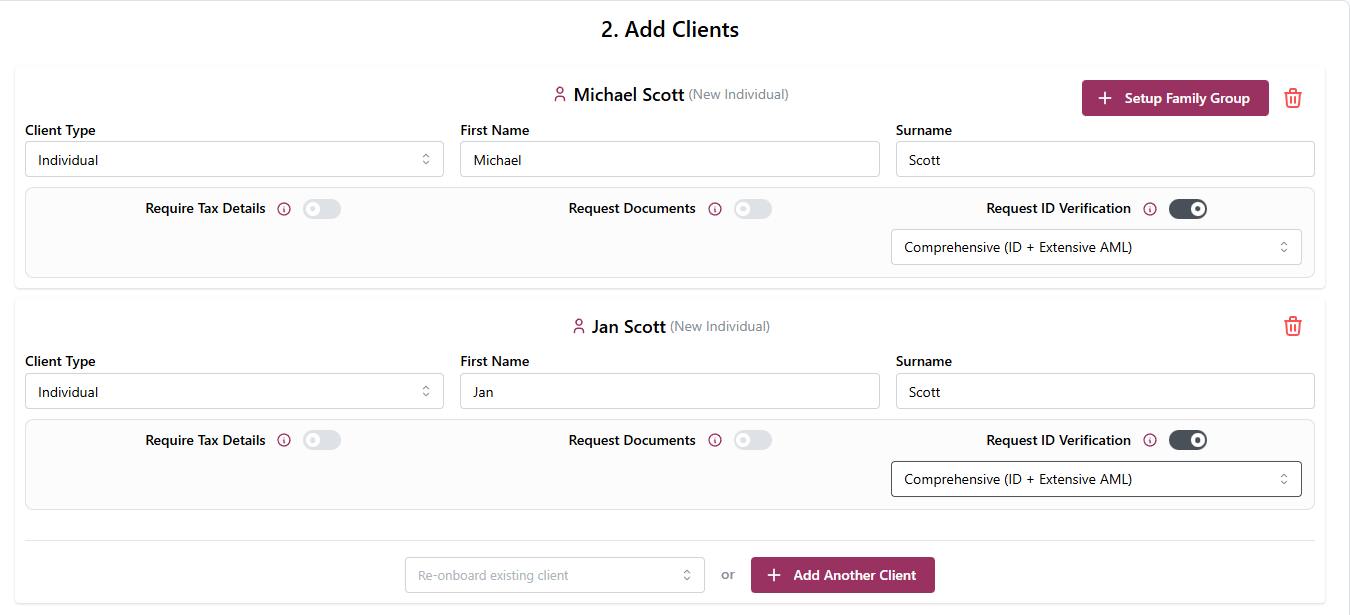
ID Verification
When your onboarding includes more than one recipient, you can now request ID verification for multiple individuals. Giving you the flexibility to verify each participant as needed.
Access
When your onboarding includes more than one recipient, a new Access section becomes available. This table outlines each recipient and which onboarding clients they have access to.
For example, in an onboarding with Michael Scott, Jan Scott, and Scott Pty Ltd:
Michael has Edit Access to his individual record and Scott Pty Ltd, but no access to Jan Scott's record
Jan has Edit Access to her individual record and Scott Pty Ltd, but no access to Michael Scott's record
You can grant either recipient View Access to each other's records if needed, but Edit Access is restricted to their own records for security reasons.
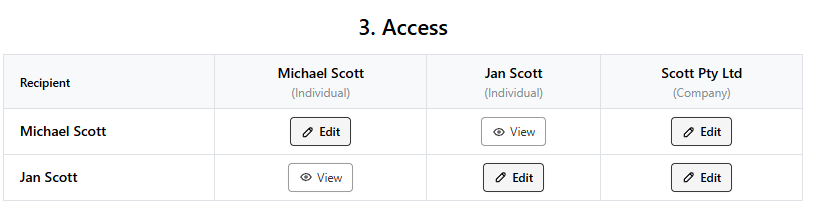
If a recipient does not have View Access to a client, that client will be hidden from their view when they access the onboarding workflow.
Recipient Workflow
The primary recipient is always taken to the onboarding first, whether through a proposal or direct onboarding email. Subsequent recipients are only notified of the onboarding once the primary recipient has completed it. Your firm is notified of completion only once the last recipient has submitted the onboarding.
For proposals with multiple signatories, the first signatory is directed to complete the onboarding while the proposal is sent to the next signatory. However, subsequent signatories cannot access the onboarding until the primary recipient has completed it.
Pricing
Pricing for onboardings has been updated to reflect the multi-recipient model. Each recipient counts as one request and can be assigned access to up to 5 clients. Additional requests are required when clients exceed the 5-client limit per recipient.
For example:
A single-recipient onboarding with 3 clients = 1 request
A single-recipient onboarding with 6 clients = 2 requests
A 2-recipient onboarding with 11 clients = 3 requests
A 4-recipient onboarding with 3 clients = 4 requests
Proposals with Multi-User Onboarding
The Client Setup Wizard has been enhanced with the following changes:
-
Clearer Existing or New Client Selection
Choose between existing clients or create new ones with improved visibility and ease of selection.
-
Centralised Proposal and Onboarding Options
Onboarding, Ethical Clearances, and eForms are now configured in a single step, streamlining your setup process.
-
Combined Signatories and Recipients
To reduce data entry duplication, Proposal Signatories and Onboarding Recipients are now managed in one area called People.
-
Clear Roles for Each Person
Role controls let you specify whether each person is a Signatory, Recipient, or both—giving you precise control over their responsibilities in the workflow.
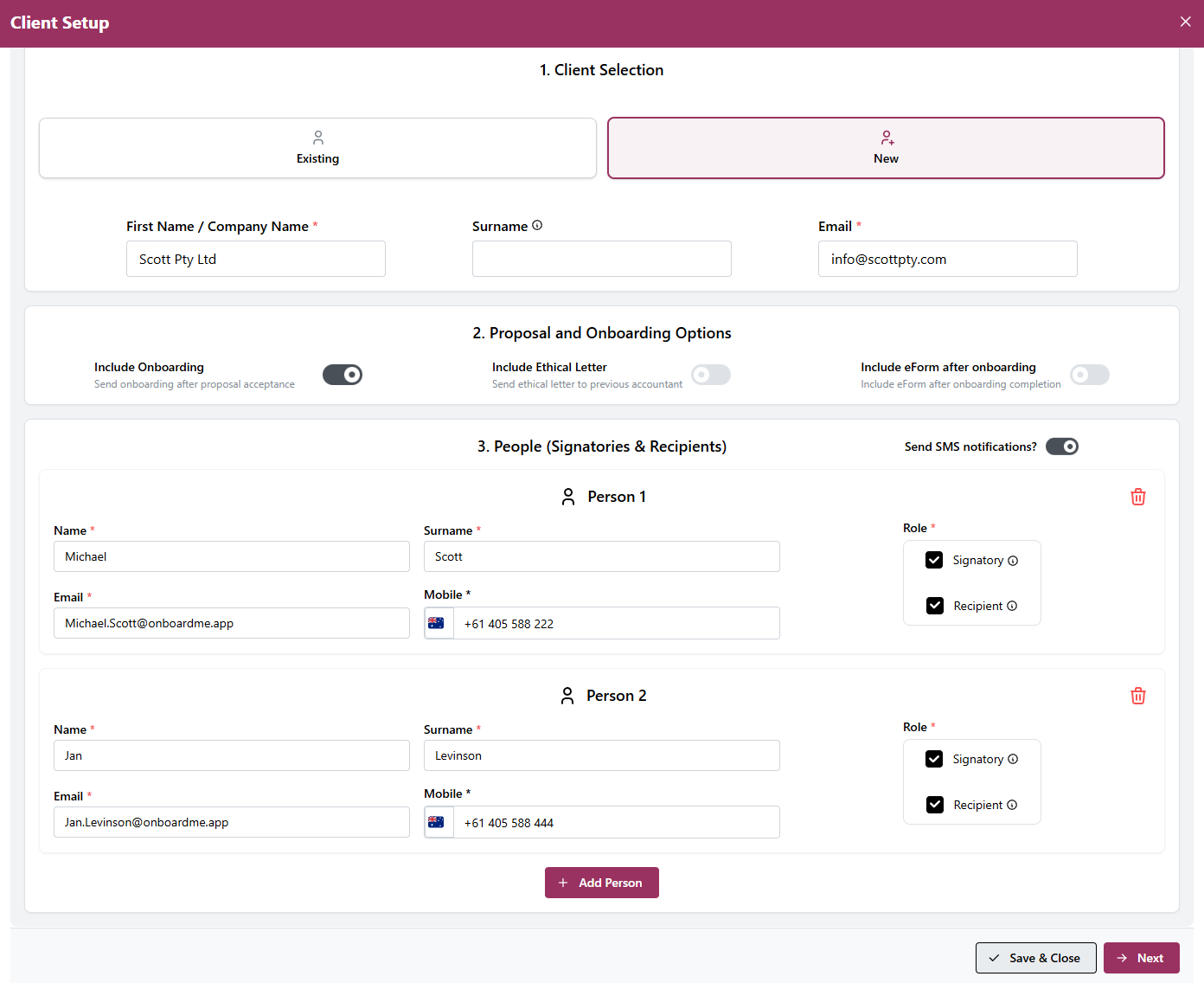
Once you have setup the New or Existing Client and selected Roles, you can continue with the setup steps of the client wizard.
Onboarding Step
The onboarding step has been updated to support the Multi-User Onboarding (similar to the Client Onboarding area). The difference is that Recipients are managed in Step 1 of the Wizard, not directly on the Client Onboarding Step for Proposal.
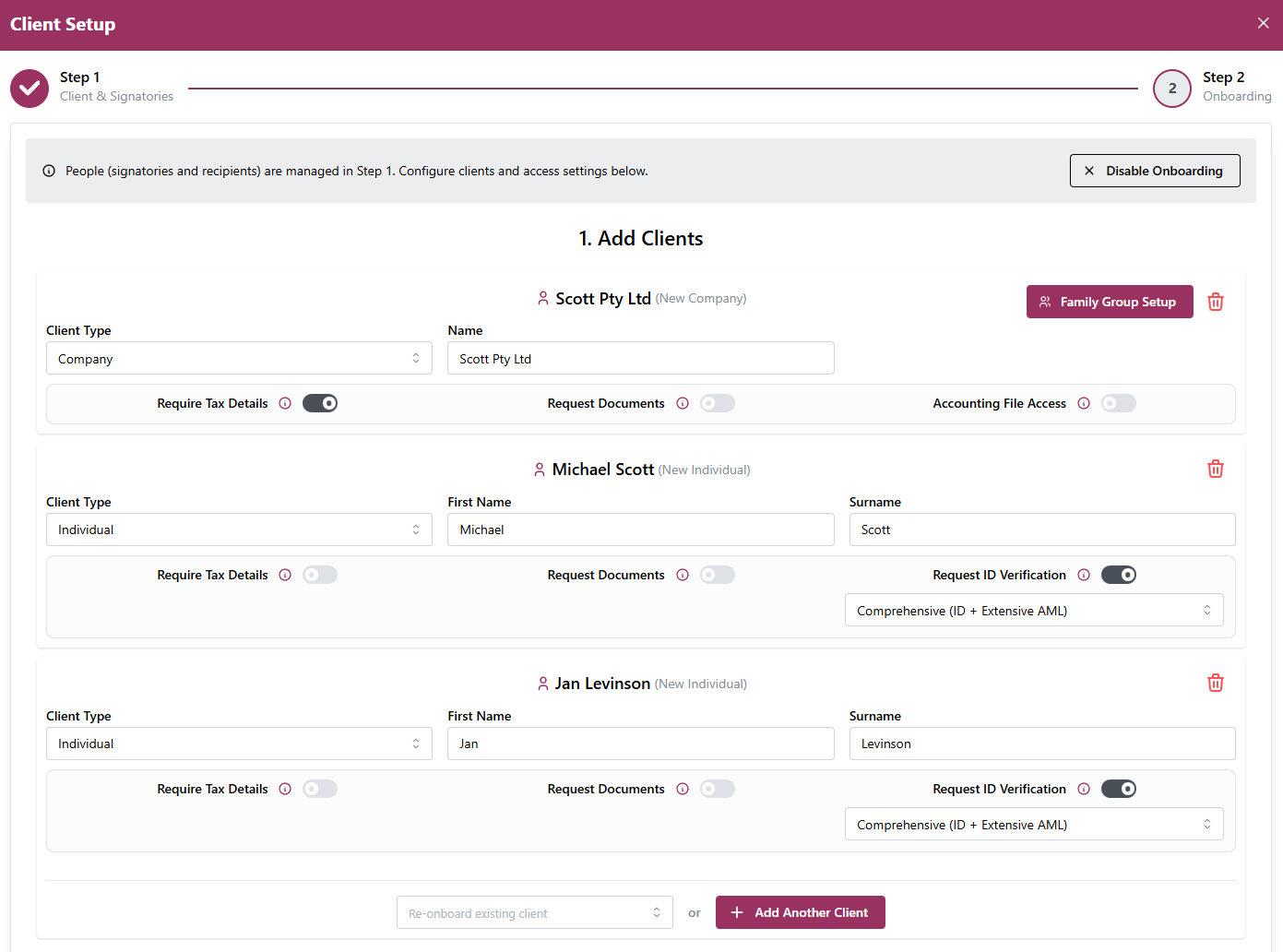
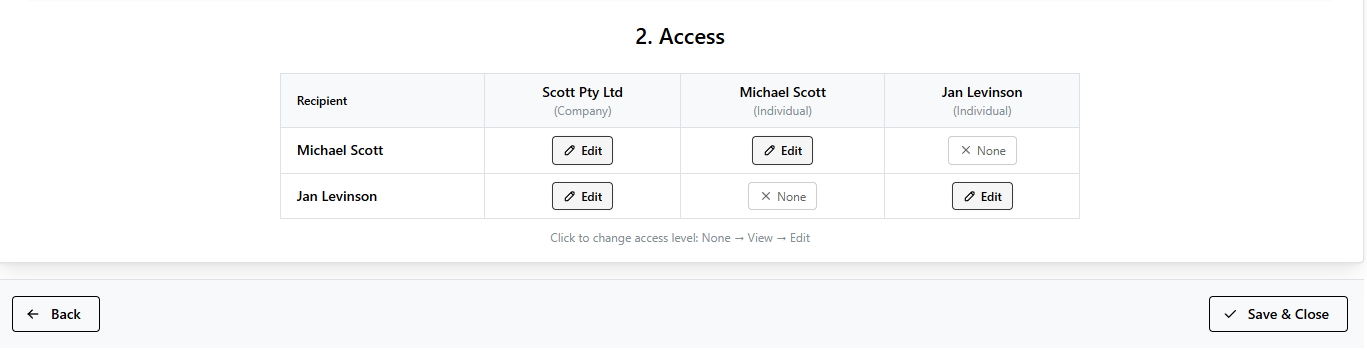
To add a signatory or recipient, navigate back to Step 1 to add a new person. You can assign them as a Signatory, Recipient, or both.
Existing Onboarding and Proposals
All existing onboardings and proposals have been automatically updated to the new recipient format. There is no impact to existing proposals or onboardings currently in flight.
New Features
Custom Field Integrations
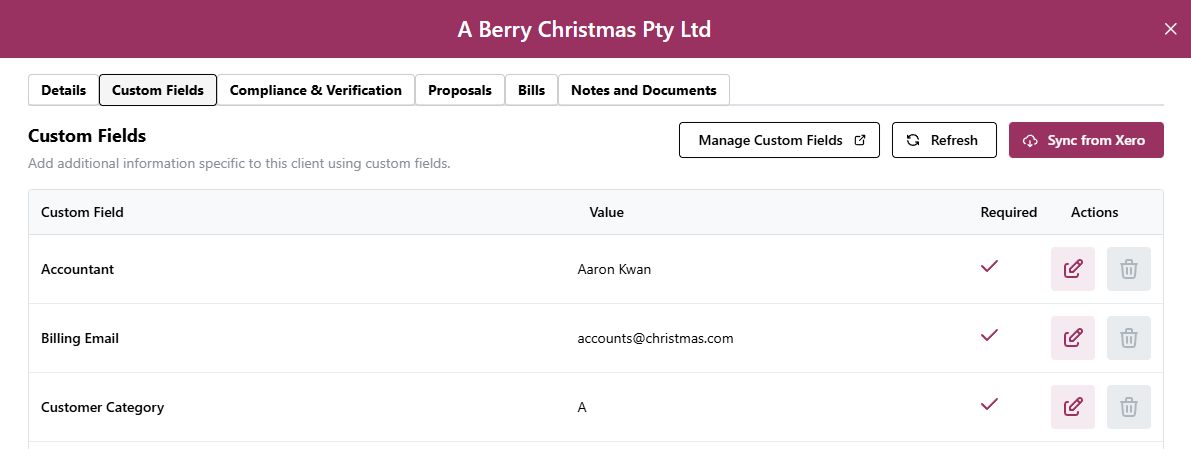
Custom Fields in OnboardMe are now integrated with FYI and XPM.
When connected to XPM or FYI, Custom Field Types will be downloaded and created in OnboardMe (matched by Name).
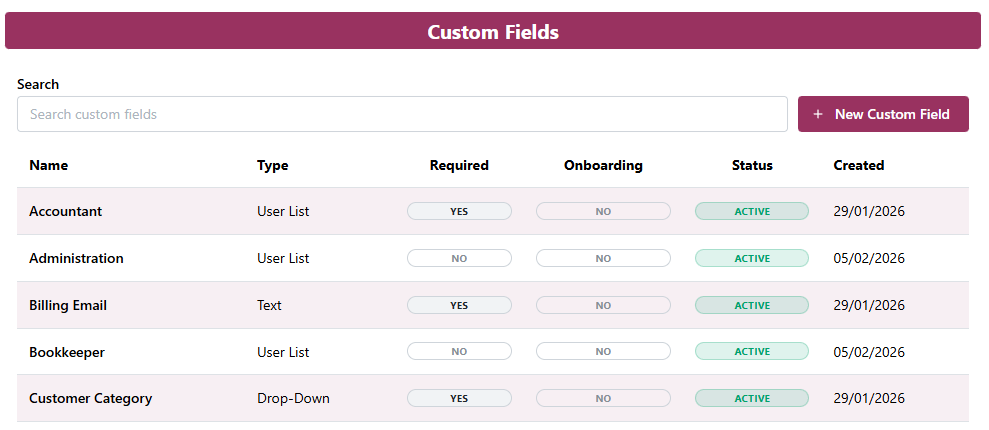
If a match can be found by name, XPM or FYI's custom field will link to the existing Custom Field in OnboardMe. If no match can be found, a new custom field type will be created.
Once Custom Field Types are created, Custom fields will be synced between XPM / FYI and OnboardMe automatically.
Invoice Syncing with Xero
For firms that have created bills in OnboardMe and pushed them to Xero, bills paid outside of OnboardMe would remain marked as unpaid until manually updated.
With this update, we've added background syncing with Xero for invoices updated after the release. Any invoice paid or partially paid in Xero will automatically create a corresponding payment record in OnboardMe.
Invoice Dates with Proposals
For customers who Bill Upfront with Proposals or Sync Bills to Xero on Acceptance of a Proposal, the system will now check the Bill Date before creating in Xero. If the Bill Date is in the past, the system will redate the bill to today's date (local time). The system also retrieves the Invoice Due Date setting from Settings / Business / Payment Details.
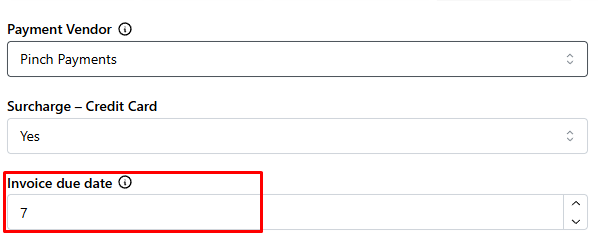
The system then adds the Invoice Due Date offset (in days) to today's date to calculate the new due date.
Once the dates have been updated, the Bill will be created in Xero and payment (if configured) will be taken.
Deep links for Accepted Proposals
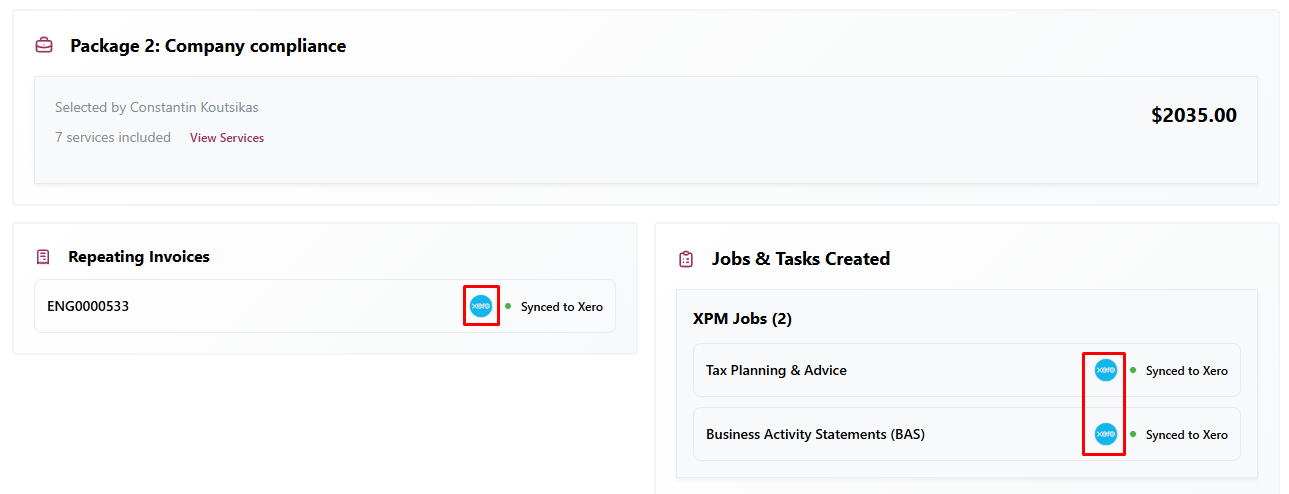
When connected to FYI, XPM or GreatSoft / MYOB Practice Management, we had added additional deep links to the Proposal Summary Page for Accepted / Completed Proposals.
You will now see the relevant logo which will open directly into the external system in the Summary Screen.

Still need help?
Contact us