
When an eForm is Opened or Submitted, the answers can be viewed by opening the eForm from the eForm module.
The eForm will open in Review mode when the form is submitted. Review mode is a simplified view that shows the answers the client completed. If a question is Sensitive, your practice still sees the full stored answer here. The client only sees a masked value if they reopen the form. CSV and PDF exports also include the full stored answer. See Sensitive eForm questions.
Sections that contain answers will show a badge "Has Answers".
To view the answers for a section's questions, expand the section and the answers will be shown underneath each question.
Reviewing Opened (in progress) eForms
If a form is in progress (the status is Opened), you can view answers for that question. If a question does not have an answer, you can still edit the question before it's been answered.
After making changes to the form, please click the Update Form button to save your changes (if a client has the form opened, they will need to refresh the form to get your latest changes).
Customers have the ability to add Chat notes to each question or section when completing the form. You will be notified via email if a chat note is added to a question or message.
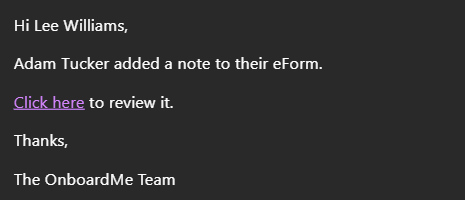
This will open the Chat section at the unread chat note.
If you wish to reply to the note, you can click the reply button, type a message and click Reply.
Any replies sent will trigger an email to the client instantly.
To view the Chat history, click the Chat button on the bottom right-hand side of the eForms page.
Reviewing and completing Submitted eForms
If the eForm is Submitted, you can review the eForm in the client's view or in the in-progress review as mentioned above.
Click the Review button in the top right-hand corner to open the client's view.
This will show the eForm in the same manner that the client captured it.
If your eForm contains documents, a Download All documents button is available in the Options section to download all uploaded documents.
Each file uploaded will also contain an individual download button.
Once the eForm has been reviewed, you can choose to do one of the following:
Export CSV
Download a CSV file of the eForm questions and answers.
Generate PDF
Generate a PDF file of the eForms questions and answers.
Download PDF file
Upload file to FYI (Only when FYI Integration is enabled)
Complete Form
Mark the form as Completed.
Completed / Cancelled eForms will be hidden from the eForms list unless the Show Completed / Show Cancelled switch is activated.
Still need help?
Contact us