
There are 3 ways to send eForms from OnboardMe:
eForms can have the following statuses:
Draft
Created but not yet sent to the client.
Sent
Sent to the client but not yet opened.
Pending Engagement
Waiting for the related engagement letter to be signed before the eForm becomes accessible.
Opened
Opened by the client but not yet completed or submitted.
Submitted
Completed by the client and submitted back to the practice (all mandatory questions answered).
Completed
Reviewed and marked as completed by the practice.
Cancelled
Cancelled by the practice; no longer accessible or active.
Send a single eForm
Setup a single eForm
To create and send an individual eForm, navigate to the eForms menu option.
Existing eForms appear in the list along with their current status.
To open an existing eForm, click the row you'd like to open. To Create a new eForm, click the + Create New eForm button in the top right-hand corner.
A new blank eForm builder will open.
eForms can be created from a template or can be manually created by the user.
To create an eForm manually, leave the Template drop down as "Create Blank Form" and give the eForm a Form Name and Description
If you are sending this eForm to an existing client, select the client in the "Client (Optional)"box. Once a client is selected, the Recipient Name and Recipient Email will be populated from the Clients record in OnboardMe.
To send an eForm to a new client, enter the Recipient Name and Recipient Email without selecting a client from the drop down.
Once a Client or Recipient is captured, you can continue on to setting up the form.
Build a single eForm
If selecting a Template in the Form Settings, the Form Builder area will be populated with the templates Sections and Questions setup in the eForm Templates area.
If you've picked a template and want to change it, click the Clear Template button to clear the form and then select a new template. All Sections and Questions will be cleared when this button is clicked.
Form Builder
Each form is a collection of Sections and Questions. Each eForm must have at least 1 section and 1 question.
To add a new section, click the "+" button" at the bottom of the current section.
Each section must have a title and an optional description.
Click the "+" button or one of the add a question button to add a new question to a section.
You will be asked the type of question you would like to add, select one of the available options.
Once you have selected the question type, the question will be added to the Section.
To understand the different question types and question options, please refer to the Question Types help article.
Saving and sending an eForm
Once you have completed setting up your eForm, you can choose to Save Form or to Send Form.
Clicking Save Form will Save and Close the current eForm.
Clicking Send Form will Save and Send the current eForm.
To Preview the form before sending, click the options button and select Preview. This will open the Form Preview for you to review.
Forms not yet sent will be shown as Draft status in the eForms screen.
To send a draft eForm, open the form and click the Send Form button.
The status will show an update to Sent, and the Sent On date will be populated.
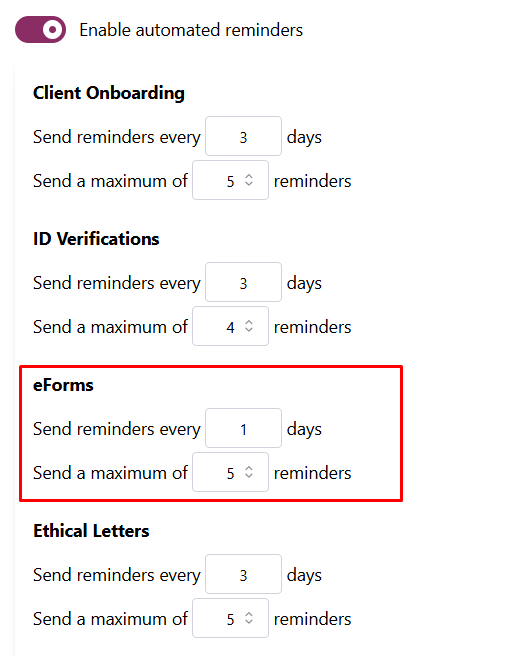
eForms have automatic reminders that can be set up to remind clients to complete eForms. Automated reminders can be set up in the Automated Reminders section in the Business Settings area.
To manually resend an eForm to a client, open the sent eForm and click the Resend Form button.
Reviewing eForms
For help with reviewing in progress or completed eForms, please refer to the Reviewing eForms | onboardme help center help article.
Still need help?
Contact us