
eForm Templates allow your firm to design reusable forms that can be sent to clients as part of your onboarding, engagement, or general information-collection workflows.
Think of them like Microsoft Forms or Google Forms — but fully integrated into OnboardMe and tailored for professional services.
This section shows all templates available to your practice.
To access eForm templates, go to Templates / eForms.
You’ll have two types of templates:
Standard Templates – pre-built by OnboardMe and ready to use out of the box.
Custom Templates – created by your practice to match your own processes and data-collection needs.
Once a template is created, it can be used to quickly generate new eForms, saving time and ensuring consistency across your firm.
Creating a new Template & Editing an Existing One
To edit an existing eForm template, click anywhere on its row in the Templates list. This opens the Template Editor, which is divided into three key areas
Form Settings (top)
Define the template name, type and description.Form Questions (middle)
Manage your form structure — add, reorder, or edit sections, and see how many questions exist in each area.Question Editor
Click any question in the form preview to edit its properties, validation rules, labels, and settings.
This layout gives you a clear and intuitive way to design and maintain your eForm templates.
eForms are made up of 2 primary elements: Sections and questions.
Sections are a way to display and group questions together, and allow you to categorise the questions.
Each eForm template must have at least 1 Section with 1 Question set up, and there is no limit to the number of questions per section.
Each question has the following options available:
Required
Question Type
Show question conditionally
When viewing a question with sections, a user can drag and drop to re-order questions, flag questions as Required, Edit a question, Copy a question and Delete a question.
When clicking on Edit, the Question editor will display the question details that can be updated.
Each question has the following options:
Question Name
Description
Question Type
Section
Show Question conditionally
Each question can have one of the following types:
Text
Long Text
Choice
Date Picker
Number Input
Email Input
Phone Input
URL Input
File Upload
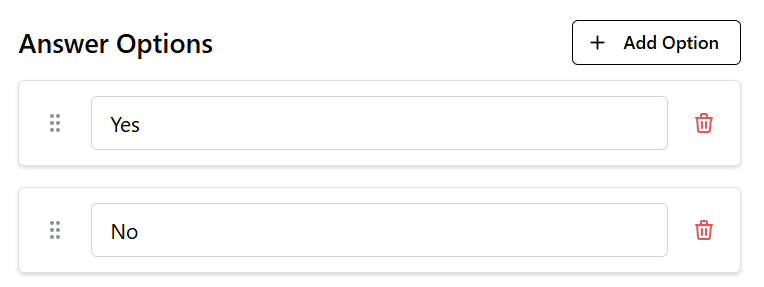
When Choice is selected, an Options section will be displayed allowing you to add the options you want to be available for your clients to choose from.
Questions can also be marked as Shown Conditionally:

When this option is enabled, the conditional question must be selected:
Note: Only questions in the same section that are above the current question can be a conditional question for the question you are editing.
After selecting the question, select the Answer and the Answer value that the condition should validate against.
When you are done making changes to a question, click the Save Changes button to save the changes to that question. After clicking Save, the success notification will be displayed.

To Preview your changes, click the Preview button on the bottom right.
This will open the Form Preview:
To Cancel changes, Archive the current eForm Template or Delete it, click the buttons on the bottom left.

To save changes to the form, click the Save Form button.
If you are creating a new form, the form will then be listed as a custom form in the Templates area.
If you are customising a standard form, the standard version of the form will be hidden and will be replaced with your custom version of the form.
If you would like to create a new template, simply click "New Template".
Here, you can build you own questions and sections, tailored to your clients' and business' needs.
Still need help?
Contact us