
With Annature connected, you can use Annature to verify your clients' identity in two places: inside the client onboarding, or as a standalone ID Verification sent from OnboardMe.
Why it helps
Clients verify their identity without leaving the onboarding.
Send a standalone check to new or existing clients without logging in to Annature.
Annature's certificate, multi-bureau and AML & CTF screening reports open straight from OnboardMe.
Annature checks don't use OnboardMe requests.
Before you start, connect Annature. See Annature Integration.
Choose Annature as your ID Verification method
Go to Settings > Business and open System Settings.
Under Onboarding, set ID Verification Method to Annature - Identity Only or Annature - Identity + AML.
Save your settings.
The Annature options only appear once Annature is connected.

Use Annature in a client onboarding
When you create an onboarding with Annature as the ID method, your client completes their ID Verification on the onboarding's ID Verification step.
Nothing is created in Annature when you send the onboarding. The verification is created when your client clicks Start Identity Verification.
Annature sends no email or SMS. Your client completes the check inside OnboardMe.
Once the check is done, your client moves on to the next step.
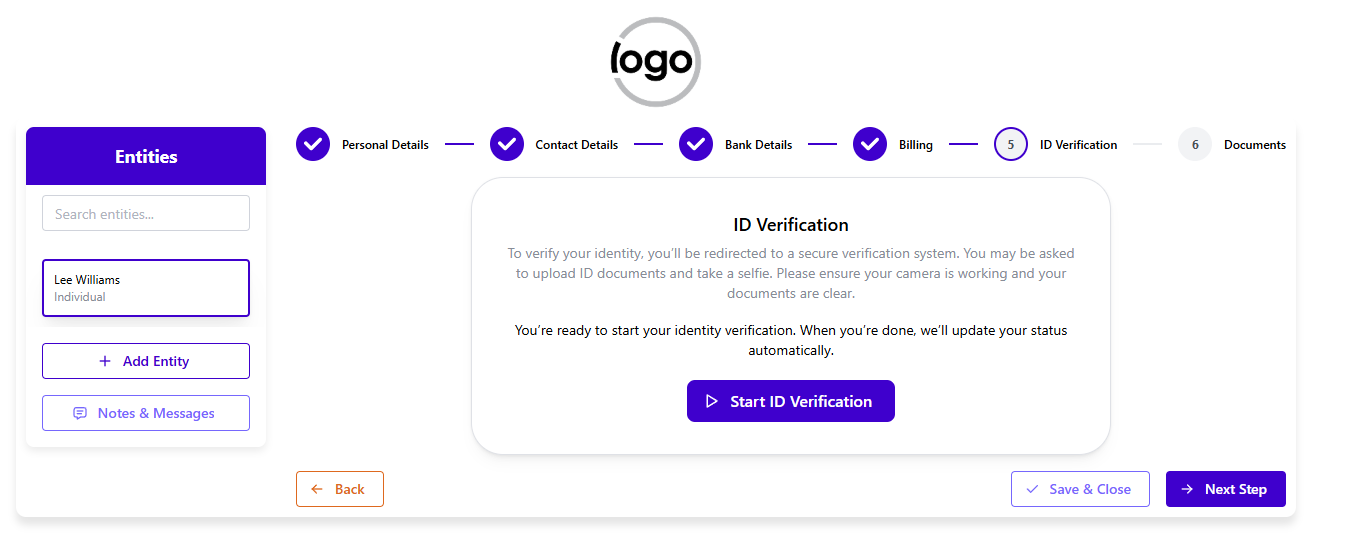
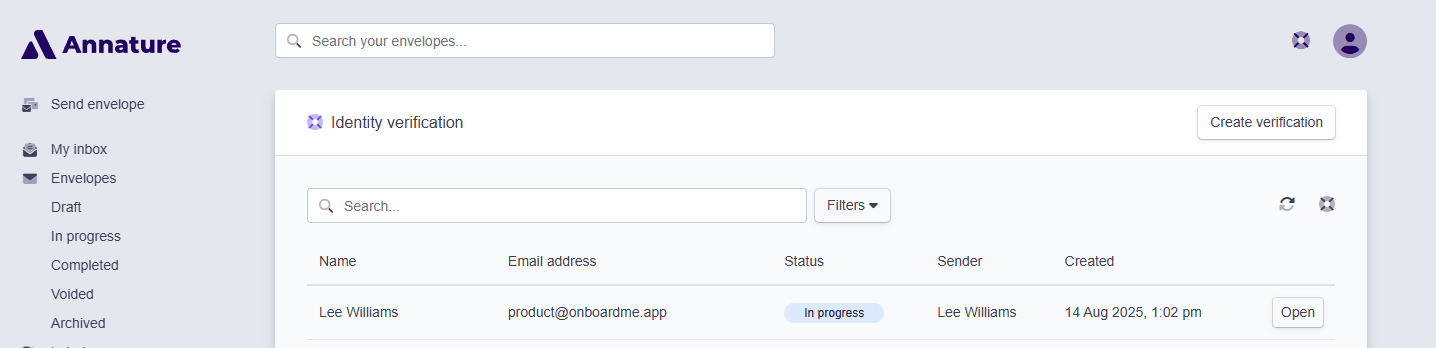
The results are available in both Annature and OnboardMe. Review them in Annature, then complete the verification in OnboardMe when you complete the onboarding.
Note: Annature needs a mobile number in international format (for example +61412345678) for each person being verified.
Send a standalone Annature ID Verification
In the menu, go to Identity & AML > ID Verification.
Click New ID Verification.
Choose an existing client, or an associated person, then set Verification Method to Annature - Identity Only or Annature - Identity + AML.
Make sure the person has a mobile number, then click Email to send the verification.

Here Annature sends its own email and SMS, and your client completes the check in Annature rather than in OnboardMe.
Open the verification in OnboardMe to:
Click Open in Annature to see the full details in Annature.
Click Refresh to get the latest status from Annature, or View History to see what's happened so far.
Open Annature's Reports: the Certificate of verification, the Multi-bureau check report and the AML & CTF screening report. A report shows once Annature has produced it.

What it costs
Annature ID Verifications don't use OnboardMe requests. You pay Annature for each check at your Annature rate, the same as checks sent from Annature directly.
Learn more
Still need help?
Contact us