
OnboardMe External Links Setup Guide
Learn how to create external links, add them to your website, and receive notifications when clients submit lead enquiries.
Overview
External Links in OnboardMe allow you to create public-facing forms that clients can access directly from your website or via a shared link. These links enable clients to:
Submit lead enquiries
Start the onboarding process
Request proposals
Submit eForms
When a client submits a form, you'll receive notifications (if configured) and can manage the submission through your OnboardMe dashboard.
Link Types
Onboarding
Start the full client onboarding process with entity setup, ID verification, and document collection.
Proposal
Send proposals with package options, terms, and payment setup. Can include automatic onboarding after acceptance.
eForm
Custom forms for specific data collection needs. Configure fields and requirements per your practice needs.
Lead Form
Capture basic client information and referral source. Perfect for initial enquiries from your website.
Creating an External Link
1. Navigate to Templates
Log into your OnboardMe account and go to Templates → External Links.
2. Create New Link
Click the "New Link" button in the top right corner of the External Links page.
3. Choose Link Type
Select the type of link you want to create:
Onboarding Only - For full client onboarding
Proposal- For proposal requests
eForm - For custom form submissions
Lead Form - For capturing initial enquiries
4. Enter Link Name
Give your link a descriptive name (e.g., "Website Contact Form" or "New Client Onboarding"). This name helps you identify the link in your dashboard.
Configuring Your Link
Basic Configuration
After creating your link, configure the following settings:
Setting | Description | Required |
|---|---|---|
Link Name | Internal name for your reference | Yes |
Link Type | Lead Form, Onboarding, Proposal, or eForm | Yes |
Status | Active or Inactive (inactive links won't work) | Yes |
Requestor / Notification user | User who should be associated with this link type | Yes |
Link-Specific Settings
For Onboarding Links:
Default Entity Type - Set the default entity type (Individual, Company, Trust, etc.)
Require ID Verification - Enable if ID verification is mandatory
Require Tax Details - Enable if tax information is required
Required Documents - Specify which documents clients must upload
Send Immediately - Choose whether to send onboarding immediately or hold for review
For Proposal Links:
Proposal Template - Select your proposal template
Package Options - Configure up to 3 service packages
Terms & Conditions - Link your proposal terms
Onboard After Acceptance - Automatically start onboarding when proposal is accepted
For eForm Links:
Form Template - Select the eForm template to use
Configure form-specific settings as needed
For Lead Forms:
Notification User - Select which employee should be notified when a new lead is submitted
No additional configuration required - Lead Forms capture basic contact information and referral source
Setting Up Notifications
For Lead Forms
When creating or editing a Lead Form link:
1. Find Notification User
In the link configuration modal, locate the "Notification user" dropdown field (only one the link has been created).
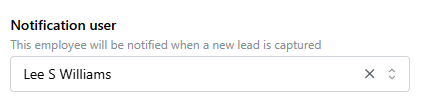
2. Select Employee
Choose the employee who should receive notifications when a new lead enquiry is submitted. This can be:
Yourself (if you want to handle all enquiries)
A specific team member (e.g., your receptionist or sales coordinator)
Any active user in your practice
3. Save Configuration
Click "Save" to apply your notification settings.
✓ Notification Setup Complete
Once configured, the selected employee will receive email notifications whenever a client submits a lead enquiry through this link.
For Other Link Types
For Onboarding, Proposal, and eForm links:
If "Send Immediately" is enabled: The process starts automatically and clients receive confirmation emails
If "Send Immediately" is disabled: You can set a "Notify employee" to receive alerts when submissions are waiting for review

⚠ Important:
Make sure the employee you select for notifications has access to their email and checks it regularly. Notifications are sent via email to the employee's registered email address.
Using the Link on Your Website
Getting Your Public Link
1. Copy the Link
After creating your external link, you'll see it listed in the External Links table. Click the "Copy" button next to your link to copy the public URL to your clipboard.
2. Link Format
Your public link will look like this:
https://anz.onboardme.app/externalLink?key=xsdefwssdv
Each link has a unique key that ensures security and tracks submissions.
Adding to Your Website
Option 1: Direct Link Button
Add a button or link on your website that opens the form:
<a href="https://your-domain.onboardme.app/externalLink?key=your-unique-key" target="_blank" class="contact-button"> Get Started </a>
Option 2: Embedded Link in Text
Include the link in your website content:
<p> Ready to get started? <a href="https://your-domain.onboardme.app/externalLink?key=your-unique-key"> Submit your enquiry here </a> </p>
Option 3: Contact Form Replacement
Replace your existing contact form with a link to the OnboardMe form:
<div class="contact-section"> <h2>Contact Us</h2> <p>Fill out our enquiry form to get started:</p> <a href="https://your-domain.onboardme.app/externalLink?key=your-unique-key" class="btn btn-primary"> Submit Enquiry </a> </div>
Option 4: Call-to-Action Banner
Add a prominent call-to-action banner:
<div class="cta-banner"> <h3>New Client? Get Started Today!</h3> <a href="https://your-domain.onboardme.app/externalLink?key=your-unique-key" class="cta-button"> Start Your Onboarding </a> </div>
💡 Pro Tip:
You can create multiple links for different purposes (e.g., one for website enquiries, one for referrals, one for specific services). Each link can have different notification settings and configurations.
Client Experience
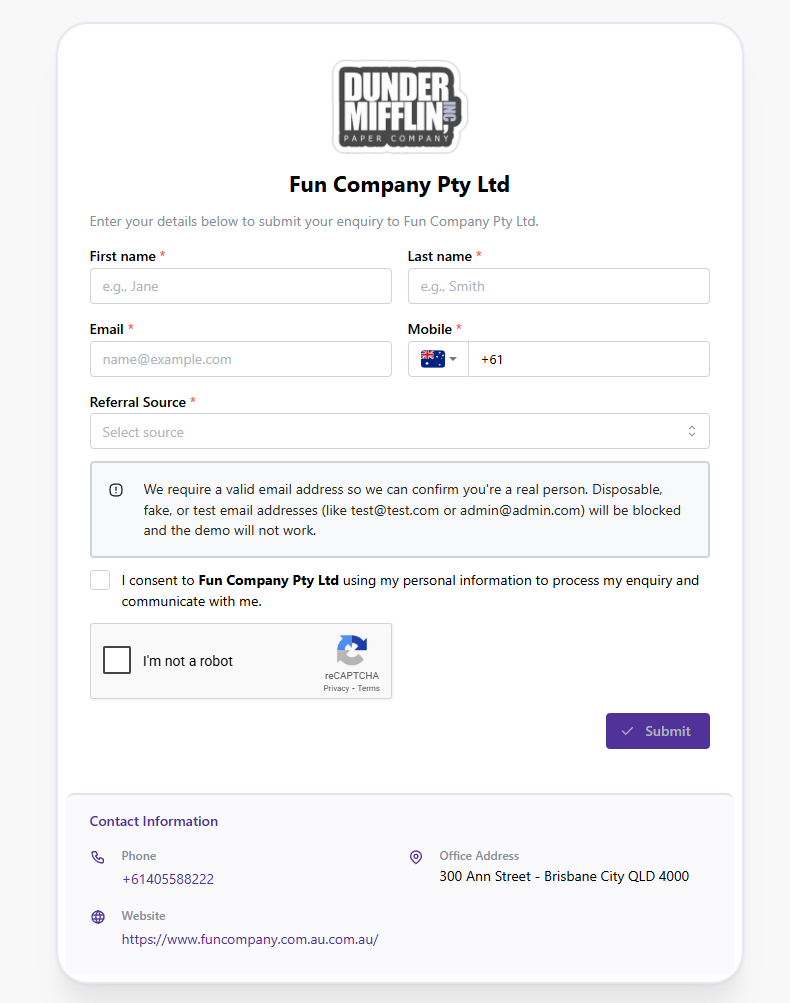
When a client clicks your external link, they'll see:
Your Practice Branding - Your logo and practice name displayed prominently
Contact Form - A clean, professional form asking for:
First Name
Last Name
Email Address
Mobile Number (with country code)
Referral Source (for Lead Forms)
Consent Checkbox - Required consent for data processing
reCAPTCHA Verification - Security verification to prevent spam
Contact Information Footer - Your practice phone, website, and address
✓ After Submission:
Onboarding: Client receives email with next steps and onboarding instructions
Proposal: Client receives proposal email to review and accept
eForm: Client receives email with eForm to complete
Lead Forms: Client sees confirmation message: "Thanks! Your enquiry has been submitted. We will be in contact shortly."
Managing Your Links
Viewing All Links
In the External Links page, you can:
See all your created links in a table
View link name, type, status, and creation date
Search for specific links by name
Filter to show active or inactive links
Editing Links
Click on any link row to edit its configuration. You can:
Change link settings and options
Update notification recipients
Modify form requirements
Activate or deactivate the link
Copying Links
Use the "Copy" button to quickly copy the public URL for sharing or adding to your website.
Link Status
Active - Link is live and accepting submissions
Inactive - Link is disabled and won't accept submissions
⚠ Security Note:
Each link can only be submitted once per device/browser. This prevents duplicate submissions and spam. If a client needs to submit again, they'll need to use a different device or clear their browser data.
Summary
Quick Setup Checklist:
✓ Go to Settings → External Links
✓ Click "New Link"
✓ Choose "Lead Form" (or your preferred type)
✓ Enter a descriptive name
✓ Select notification user (for Lead Forms)
✓ Save the link
✓ Copy the public URL
✓ Add the link to your website
✓ Test the link to ensure it works
Need Help? If you have questions about setting up external links or configuring notifications, please contact OnboardMe support.
OnboardMe External Links Setup Guide
Last Updated: February 2026
Still need help?
Contact us