
Integration overview
Client Integration
OnboardMe downloads clients from FYI and attempts to match them with existing clients in OnboardMe using TFN, ABN, ACN, or Name + Email.
Clients newly created in OnboardMe-either manually or through Client Onboarding-are checked against FYI.
If a match is found, they are linked.
If no match is found, a new client is created in OnboardMe.
New Clients created in OnboardMe (manually or via onboarding) are created in FYI.
Updates to Clients in OnboardMe (manually or via onboarding) are updated in FYI.
Updates made to matched clients in FYI are downloaded into OnboardMe every hour.
Client updates made in OnboardMe will be pushed to the FYI instantly.
Cabinets, Work Items, and Years
Cabinets, Work Items, and Years are downloaded into OnboardMe.
Onboarding Documents must be mapped to a Cabinet (and Work Type/Year if the Cabinet supports them).
Proposal Documents must also be mapped to a Cabinet (and Work Type/Year if supported).
Document Creation in FYI
Signed Proposals are automatically filed in FYI once accepted.
Client Onboarding PDF Summaries are saved to FYI when onboarding is completed.
Documents collected during Client Onboarding are synced to FYI upon completion.
eForm PDF answer sheets can also be synced to FYI when completed.
Job Deployment in FYI
Jobs can be set up on a proposal and created in FYI when the proposal is accepted. For existing clients, you can optionally create jobs when the proposal is sent instead (see Sync Options).
One or more jobs can be created for existing clients, new clients with onboarding, or new clients without onboarding. OnboardMe creates or links the FYI client if needed.
Billing integration with FYI
OnboardMe and FYI do not have a direct integration for Billings. We integrate billings via our shared integration with Xero Ledger.
Bills created in OnboardMe are pushed to Xero Ledger on payment or Proposal Acceptance.
FYI will sync bills created in Xero Ledger into FYI.
Job Reference and Bill Reference will be used to match the bill in Xero to the Job in FYI.
Connecting FYI and OnboardMe
Login to OnboardMe and go to Settings / Integrations.
FYI will appear under Available Integrations - click Connect.
You will then see instructions on how to activate OnboardMe in FYI.
How to Connect
Follow these steps, then paste your credentials into OnboardMe.
Go to FYI Integrations (opens in a new tab).
Click Create new secret.

Copy the Access Key ID and Secret Key ID from FYI.
You can also set the Default Cabinet and Year if needed.
Paste these credentials into OnboardMe and click Connect.

Once your Access Key ID and Secret Key ID have been pasted into OnboardMe, click the Connect button.
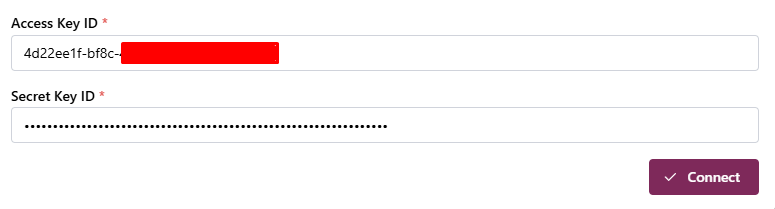
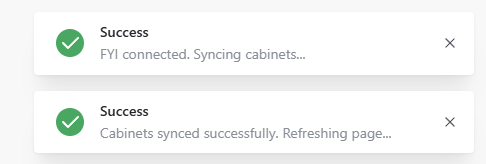
Once a successful connection is established, OnboardMe will automatically download Cabinets from FYI and display confirmation messages.
FYI will then appear as Connected under Active Integrations.
Configuring FYI and OnboardMe
Click Sync Options to complete your FYI configuration.
The Sync Options modal allows you to perform ad-hoc syncs from FYI and configure how Proposals and Onboarding documents are mapped.
Set the FYI Type.
This defaults to FYI Documents if you also have another Practice Management system configured.
Select the Cabinet (and optionally the Work Type and Year) for Proposal and Onboarding document syncs.
If the Cabinet has no Work Types, those dropdowns will be disabled.
Click Save Changes once your mapping is complete.
The Sync Options area also lets you control which items sync into OnboardMe.
Syncing Clients
Before documents can be saved to FYI, clients must be synced and matched.
Click Sync Clients to download clients from FYI into OnboardMe.
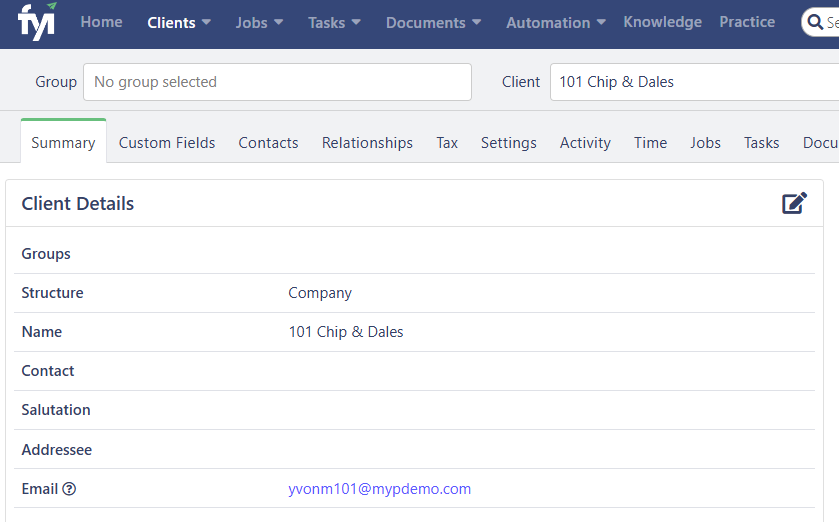
Once clients are synced, a new FYI button will appear on each client record in OnboardMe.
If a match exists, clicking the button opens the client in FYI.
If no match was found, the button will show Link FYI.
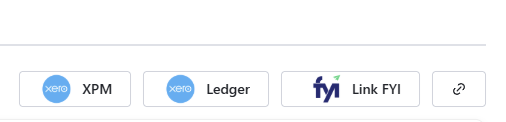
Clicking Link FYI opens a list of FYI clients that are not yet linked.
If you find your client in the list, select them from the list and click Link. This will create the link between the FYI client and the OnboardMe client.
If you are unable to find the client in the list (this could be because they don't exist in FYI), leave the drop down blank and click the Create button.
This will create the client in FYI and update the button to just show FYI.


Document Sync Behaviour
For existing linked clients, Proposal and Onboarding documents are automatically synced to FYI upon completion.
For new clients created during Onboarding, OnboardMe will:
Create the client in your Practice Management system.
Immediately create the client in FYI.
FYI is instructed that this client already exists in your PM system, so duplicates are avoided.
Push all relevant documents into FYI for the newly created client.
Create Jobs in FYI
For firms who want to create Jobs in FYI from Proposals, an FYI Jobs Step will be available on the Proposal Setup.
On Proposal Settings, turn on FYI Jobs (add at least one client in Client Setup first). An FYI Jobs step then appears. You can create jobs for an existing client, a new client with onboarding, or a new client without onboarding.
To create Jobs in FYI, enable the switch to enable the Job creation process.
FYI Jobs can be created based on a Job Template or you can build your own job up manually using the fields provided.
Job Templates can be synced into OnboardMe via the Settings / Integrations area and clicking the Sync Job Templates button.

One or more jobs can be configured to be deployed to FYI.
Jobs are created in FYI based on the following rules:
Existing client: jobs are created when the proposal is accepted. If you turn on Allow Jobs to be created on Proposal Sent in FYI Sync Options, jobs for existing clients are created when you send the proposal instead.
New client without onboarding: when the proposal is accepted, OnboardMe creates the client, creates or links them in FYI, then creates the jobs.
New client with onboarding: jobs stay pending until that onboarding is completed. Onboarding creates the client in FYI, then the jobs are created.
Once a proposal is accepted, jobs show as Synced, or Pending if they are still waiting (for example onboarding is not finished).
Click the FYI Logo to open the Job in FYI.
If you navigate to the Jobs step, you will see a badge indicating if the Jobs are synced to FYI or not.
Billings integration
OnboardMe and FYI do not have a direct integration for Billings but leverage our joint integration to Xero Ledger to have bills created in OnboardMe flow through to FYI.
Invoices created in OnboardMe, will be created in Xero Ledger (refer to the Xero Ledger integration guide for details): Connecting and configuring Xero Ledger | onboardme help center
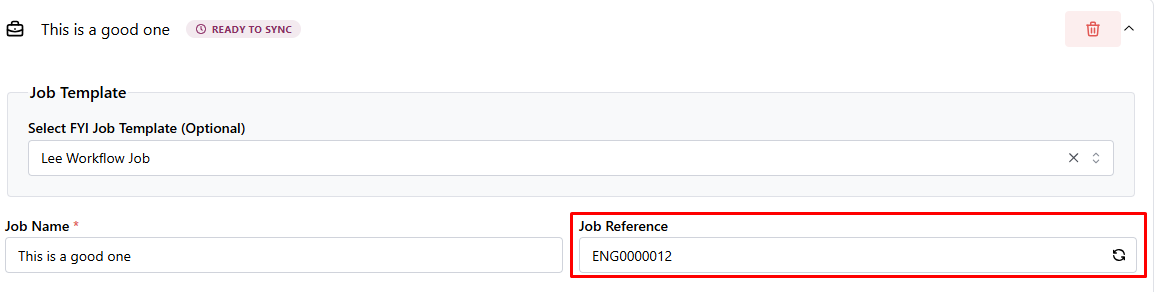 Invoices created in OnboardMe will be synced into FYI automatically. If the reference number on the Bill matches the Job reference number, the invoice will be automatically associated to the Job in FYI.
Validation exists that bills created to the same client that have a job must have the same reference.
Update the reference number on bill to match the job by clicking the refresh button.
Still need help?
Contact us