
Integration overview
FYI Documents mode connects OnboardMe to FYI for document filing. It is designed to work alongside your Practice Management system (such as Xero Practice Manager or MYOB Practice Management). OnboardMe does not act as your primary practice management system when FYI Documents is connected.
If you use FYI as your primary practice management system (without XPM, MYOB, Kloud Connect, or Karbon), see OnboardMe integration with FYI Elite instead.
What FYI Documents does
Downloads FYI cabinets, categories, years, staff, and client records into OnboardMe for matching and linking.
Links OnboardMe clients to existing FYI clients so documents can be filed to the correct client file.
Automatically files signed proposals, onboarding summaries, onboarding documents, and ID verification certificates to configured FYI cabinets when workflows complete.
Supports manual uploads to FYI from proposals, eForms, compliance checks, checklists, and ID verification.
FYI Documents does not:
Create or update OnboardMe client records from FYI data during sync.
Update existing FYI client details when you edit a client in OnboardMe.
Create new FYI clients when you link a client manually (you must link to an existing FYI client).
Create FYI jobs from proposals (that requires FYI Elite).
Client linking and matching
OnboardMe downloads FYI client records and attempts to match them with existing OnboardMe clients using, in order:
Name and email
ACN (with name alignment)
ABN (with name alignment)
TFN (with name alignment)
When a match is found, the clients are linked automatically. OnboardMe client details are not overwritten from FYI in Documents mode.
Client creation and updates in OnboardMe come from your Practice Management system (XPM, MYOB Practice Management, or Kloud Connect). OnboardMe pushes those changes to your PM system as usual.
To file documents for a new OnboardMe client in FYI, the client must exist in your PM system first. OnboardMe can then create the client in FYI (using your PM client ID) and link them before uploading documents.
Cabinets, categories, and years
Cabinets, categories, and years are downloaded from FYI into OnboardMe when you connect or run Sync Cabinets.
Proposal Documents must be mapped to a cabinet (and category and year if the cabinet supports them).
Onboarding Documents must also be mapped to a cabinet (and category and year if supported).
In the Sync Options modal, Category refers to the cabinet work type. Year refers to the financial year option where the cabinet uses one. If a cabinet has no categories or years, those dropdowns are disabled.
Document filing in FYI
Automatic uploads (to your configured default cabinets):
Signed proposals are filed when the proposal is accepted.
Onboarding PDF summaries, collected onboarding documents, and eligible ID verification certificates are filed when onboarding is completed.
Manual uploads (you choose the cabinet, category, and year in a modal):
Proposal summary PDF from the proposal screen (Upload to FYI).
Completed eForm answer sheets (Generate PDF and Upload to FYI or Upload to FYI).
Compliance AML check reports (Upload Checks to FYI).
ID verification certificates (Save to FYI).
Client checklist documents after save.
Documents are only uploaded when the OnboardMe client is linked to an FYI client. If linking fails because the client does not exist in FYI yet, create or sync the client in your PM system first, then link them in OnboardMe.
Connecting FYI and OnboardMe
Log in to OnboardMe and go to Settings / Integrations.
FYI will appear under Available Integrations. Click Connect.
You will then see instructions on how to activate OnboardMe in FYI.
How to connect
Follow these steps, then paste your credentials into OnboardMe.
Go to FYI Integrations (opens in a new tab).
Click Create new secret.
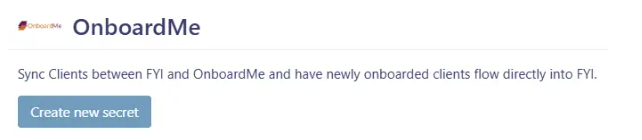
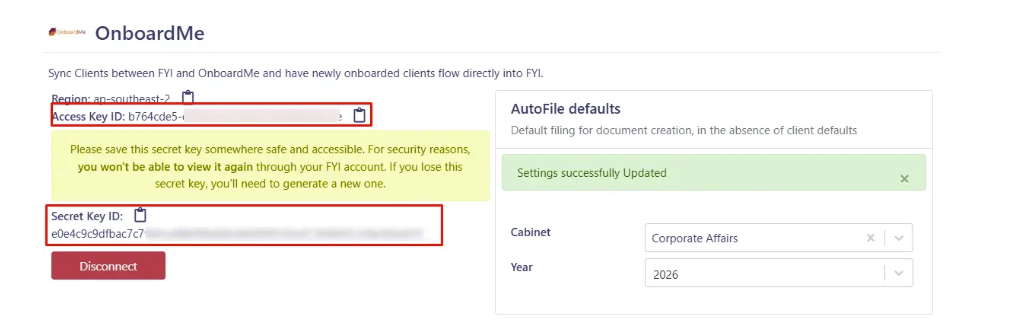
Copy the Access Key ID and Secret Key ID from FYI.
You can also set the default cabinet and year in FYI if needed.
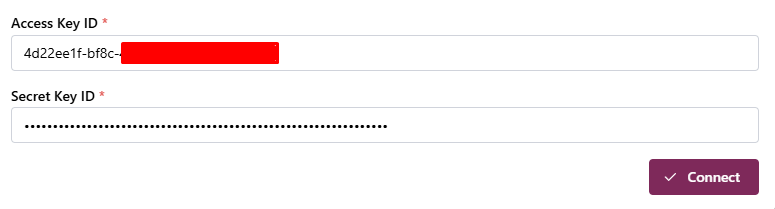
In OnboardMe, paste your credentials, set FYI Connection Type to FYI Documents, and confirm your client name format (used when syncing names to FYI and your PM system).
Click Connect.
Once your credentials are saved, click Connect.
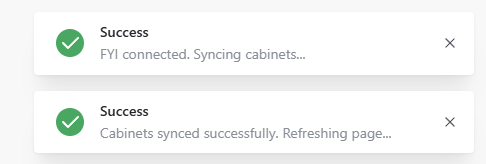
OnboardMe validates the connection and starts a background sync (cabinets, staff, and FYI clients). Practice administrators receive an email when the initial sync completes. This may take several minutes.
FYI will then appear as Connected under Active Integrations, showing Type: FYI Documents.
Configuring FYI and OnboardMe
Click Sync Options on the FYI integration tile to complete your configuration. If cabinets are not yet mapped, this modal may open automatically when you visit Settings / Integrations.
The Sync Options modal lets you map document cabinets and run manual syncs from FYI.
Confirm FYI Type is set to FYI Documents. This is the default when you also have a Practice Management system connected (XPM, MYOB, Kloud Connect, or Karbon).
Run Sync Cabinets if cabinets are not yet loaded.
Select the cabinet (and category and year where required) for Proposal Documents and Onboarding Documents.
If the cabinet has no categories or years, those dropdowns will be disabled.
Click Save Changes once mapping is complete.
The Sync Options modal also includes manual sync buttons:
Sync All - staff, clients, and cabinets.
Sync Clients - download FYI client records and attempt automatic linking.
Sync Recent Clients - clients changed in FYI within the last few hours (default 3 hours).
Sync Staff and Sync Cabinets.
Sync progress appears in the status panel at the bottom of the modal. Only one sync job runs at a time.
Syncing and linking clients
Before documents can be saved to FYI, OnboardMe clients must be linked to FYI clients.
Click Sync Clients in Sync Options (or use the FYI tab in the Integration Dashboard on the Integrations page) to download FYI clients and run automatic matching.
Note: In FYI Documents mode, OnboardMe does not create or update OnboardMe client records from FYI data. Your Practice Management system remains the source of truth for client creation and updates.
The Integration Dashboard FYI tab shows linked, unlinked, and mismatched clients. Use Connect on an unlinked OnboardMe client to open the link modal, or use the FYI button on the client record.
If the client is linked, clicking the button opens the client in FYI (Open in FYI).
If the client is not linked, the button shows Link and opens the Link to FYI Client modal.
In FYI Documents mode, you must select an existing FYI client from the list. Creating a new FYI client from OnboardMe is not available in this mode.
Choose the correct client and click Link.
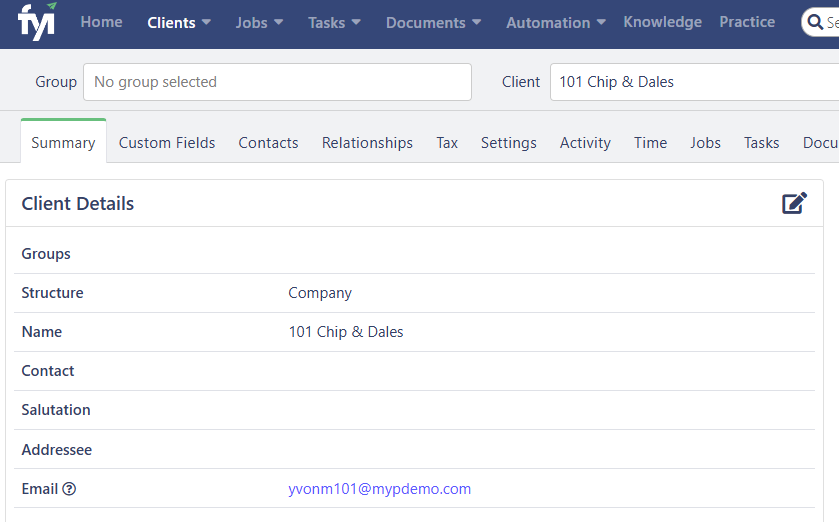
If the client is not in the list, they may not exist in FYI yet. Create the client in your Practice Management system. Once synced to OnboardMe and FYI, return and link them.
Select the client from the list and click Link to connect the OnboardMe client to the FYI client.
To remove a link, open the integration settings on the client record and choose Delink from FYI.
Background sync schedule
OnboardMe syncs FYI data automatically in the background:
Hourly: staff and FYI clients changed in the last hour (linking only in Documents mode, no client record updates).
Weekly: a full FYI client list sync (typically Sunday overnight).
Practice administrators receive an email when a full background sync completes after connect or after changing FYI type.
Document sync behaviour
For existing linked clients, proposal and onboarding documents are automatically filed to FYI when those workflows complete, using your configured Proposal and Onboarding cabinet mappings.
For new clients created during onboarding, OnboardMe will:
Create the client in your Practice Management system.
Create the client in FYI using your PM client ID (so duplicates are avoided).
Link the clients and file onboarding documents to FYI.
This requires Xero Practice Manager or MYOB Practice Management to be connected. Without a PM integration, new clients cannot be pushed to FYI automatically.
When both XPM and FYI are connected, onboarding waits for the client to sync to XPM before filing documents to FYI.
Related
Still need help?
Contact us