
Client integration
Download from Xero Ledger
Contacts are downloaded from Xero Ledger when you connect, when you run a manual sync, and on a background job about every hour (default 60 minutes). Each run requests contacts changed in roughly the last 60 minutes.
Contact data is stored in OnboardMe’s Xero Ledger mirror and then matched to OnboardMe clients.
Matching Xero contacts to OnboardMe clients
When contacts are imported, OnboardMe tries to link them in this order:
Already linked (same Xero contact ID)
ABN (tax number)
ACN (company number)
Email + name — email must match and the name must be a strong match
Email only (special case) — when exactly one OnboardMe client has that email and the contact type matches (individual vs organisation)
Name — direct or individual name match (can match without email in some cases)
If a match is found, the client is linked to the Xero contact.
If no match is found, a new OnboardMe client may be created only when all of the following apply:
The contact is marked as a customer in Xero
The contact has an email address
No other integration is blocking Ledger-driven client changes (see below)
Email-only matches (same email, different name, and not the sole-owner case) are not auto-linked, to reduce wrong links. Those contacts may need manual linking.
Contacts without an email are not auto-created as new OnboardMe clients from Xero.
When Xero Practice Manager is also connected (typical setup)
If XPM (or FYI, Karbon, KloudConnect, or GreatSoft) is active for the practice, Ledger contact sync does not:
Update OnboardMe client details from Xero, or
Create new OnboardMe clients from Xero contacts
It still downloads contacts into the Ledger mirror and can establish links to existing OnboardMe clients when matching rules succeed. Client master data is then driven by Practice Manager (hourly sync and OnboardMe → XPM push), not by Ledger inbound updates.
Connect Practice Manager before Ledger where possible; the product warns that this reduces duplicate clients.
OnboardMe → Xero Ledger (new and updated clients)
When a client is created or updated in OnboardMe and Xero Ledger is connected:
If the client is already linked, changes are pushed to the existing Xero contact.
If not linked, a new contact is created in Xero and linked.
If Xero reports a duplicate name or account number, OnboardMe attempts to find and link the existing contact instead of failing.
There is no separate “search Xero first” step like Practice Manager; linking relies on the existing connection or duplicate handling on create/update.
Ongoing sync
Direction | Behaviour |
|---|---|
Xero → OnboardMe | Hourly download of changed contacts. Full client updates apply only when Ledger is the sole client integration (no XPM, etc.). With XPM connected: mirror + linking only. |
OnboardMe → Xero | Changes to clients in OnboardMe are pushed to Xero Ledger when saved (for linked clients, updates; otherwise create + link). |
Archived Xero contacts are removed from the Ledger mirror on sync.
Tax rates
Download: Active tax rates are downloaded from Xero into OnboardMe (on connect and via manual Sync tax rates).
Storage: Rates are stored against the Xero Ledger integration (by Xero tax name and type).
Matching to OnboardMe: You map each Xero tax rate to an OnboardMe tax rate in settings. Download does not auto-map to OnboardMe tax options; mapping is required for correct tax on invoices pushed to Xero.
Revenue Accounts
Download: Xero Revenue Accounts are downloaded into OnboardMe (on connect and via manual Sync Accounts).
Engagement services: You map Xero Revenue Accounts to Engagement Services in settings. That mapping is used when creating invoices in Xero Ledger from engagements.
Tracking Categories
Download: Xero Revenue Accounts are downloaded into OnboardMe (on connect and via manual Sync Revenue Accounts).
Engagement services: You map Xero Revenue Accounts to Engagement Services in settings. That mapping is used when creating invoices in Xero Ledger from engagements.
Branding themes
Download: Xero items (sales items) are downloaded into OnboardMe (on connect and via manual Sync sale items).
Matching: Items are matched in the mirror by item code when syncing updates.
Engagement services: You map Xero sales items to Engagement Services in settings. That mapping is used when creating invoices in Xero Ledger from engagements.
Invoice creation
Invoices are created in Xero Ledger (Accounting), not in Xero Practice Manager.
Invoice type | When it is pushed to Xero Ledger |
|---|---|
Bill upfront(pay-now proforma) | When paid (e.g. card/direct debit), and/or when the engagement is accepted without taking payment at acceptance (if the invoice is flagged to sync immediately). |
Future-dated (invoice date today or later, not “bill on completion”) | On the invoice date, via a daily job at 1:00 AM server local time, for invoices not yet sent to Xero. |
Bill on completion | Not sent by that daily job; handled when billing is completed. |
The OnboardMe client must be linked to Xero Ledger (a Xero contact exists). Pay-now invoices may use a configured paid invoice branding theme in Xero where set up.
Requirements
Firms should have Xero Practice Manager and Xero Ledger integrated for the full OnboardMe workflow (clients/jobs in PM, invoices in Ledger). See Xero’s guide: Connect Practice Manager to Xero – Xero Central.
Dataflow between Xero Ledger and OnboardMe
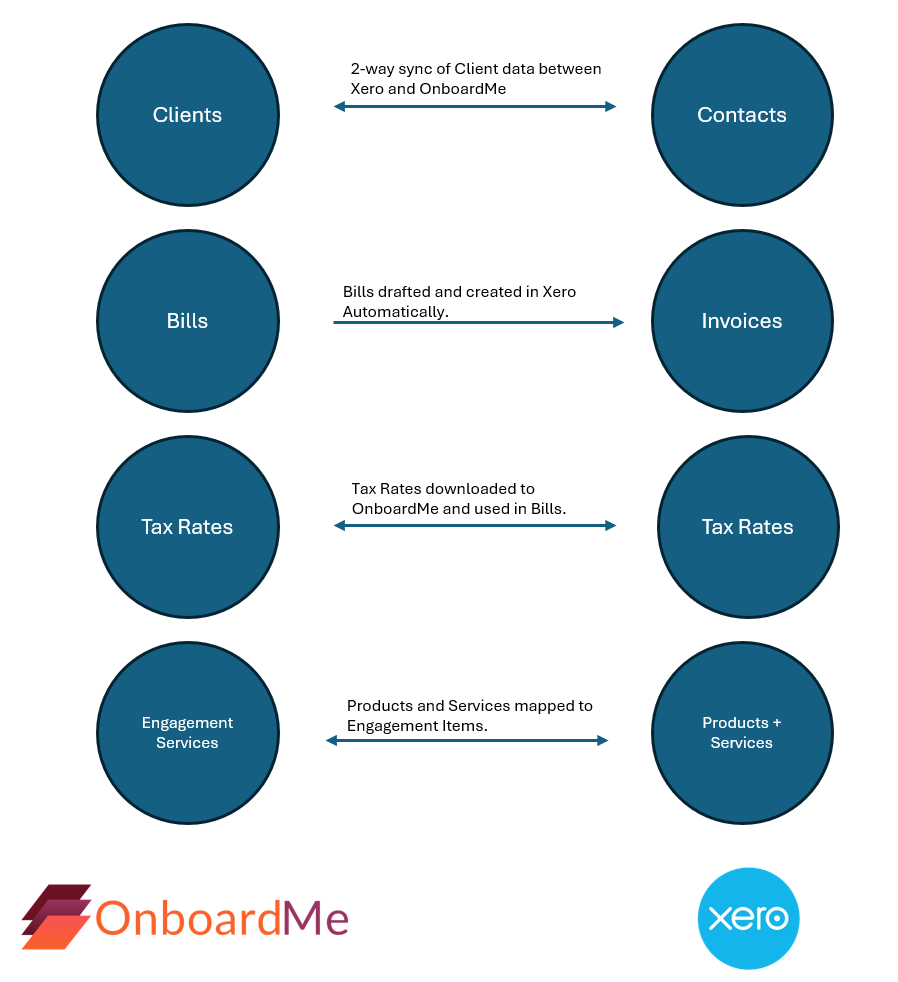
Connecting OnboardMe and Xero Ledger
NB: If you will be using XPM and Xero Ledger, please first Connect XPM before connecting Xero Ledger to avoid possible duplicates.
Login to OnboardMe and navigate to Settings / Integrations. Available integrations for the country will be displayed in the Available Integrations.
Click Connect on Xero Ledger and login to Xero.
If you have access to multiple Xero Ledger instances, select the appropriate Instance you want to connect OnboardMe to when prompted.
Once the connection process has completed, OnboardMe will automatically download Contacts from Xero Ledger.
Once connected successfully, Xero Ledger will now show under the Connected Integrations.
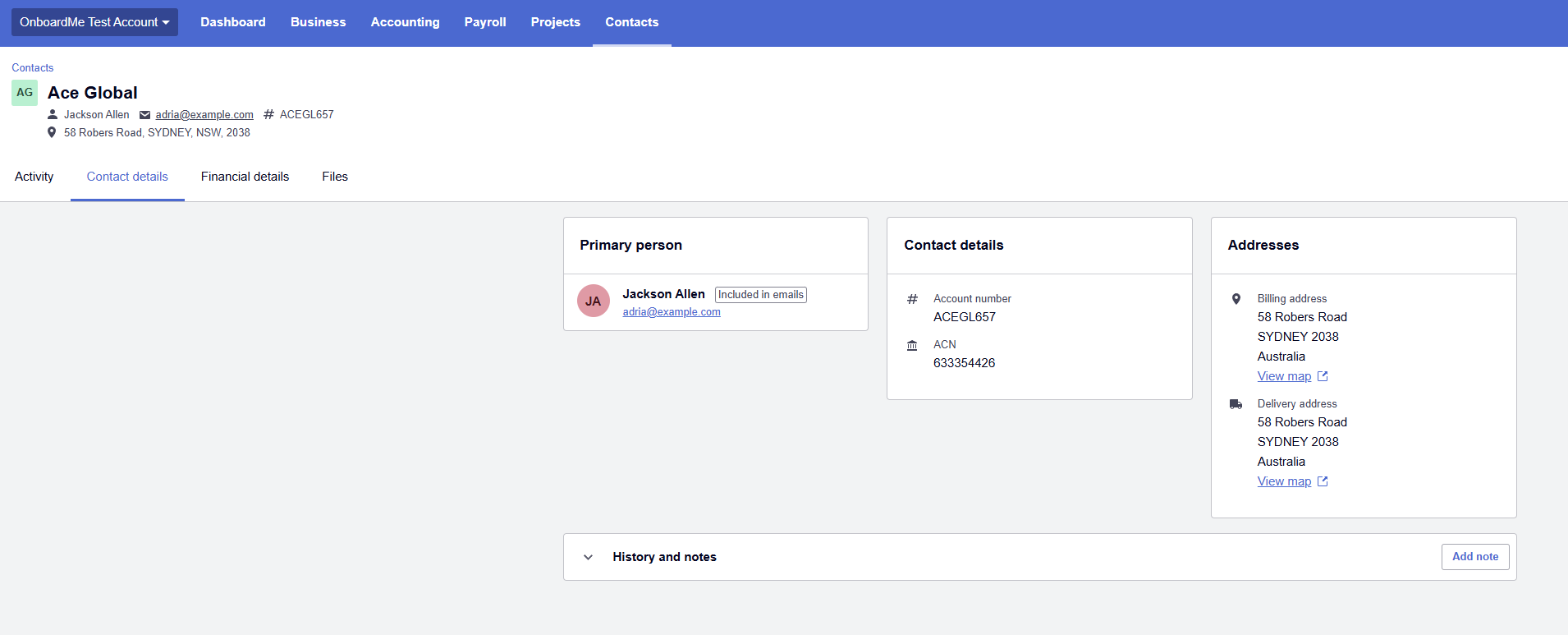
If you now navigate to the Clients area in OnboardMe, you will see the Contacts from Xero Ledger in the system.
Each client will have either a Ledger button or Link Ledger button.
Clicking the Link Ledger button will attempt to create the client in Xero ledger. If the client already exists because of a name or code, we will then download that client from Xero and match it.
If the client is linked and you click the Ledger button, the client will open in Xero Ledger.
Tax Rates
Tax Rates in OnboardMe must be mapped to Tax Rates in Xero ledger to allow for the creation of Invoices in Xero Ledger from OnboardMe.
Under Settings / Integrations, click the Xero Settings button on the Xero Ledger Integration card.
This will open up the Xero Ledger Settings Modal.
The left side shows the Tax Rates downloaded from Xero Ledger; the right side shows the OnboardMe Tax Rates.
Map the 2 Tax Rates in OnboardMe to the relevant Xero Tax rates. When selecting the Mapped option, the system will automatically save the mapping.
If there has been a change in the Xero Ledger Tax Rates and you need to retrieve a new list, click the Sync Tax Rates button at the top right of the modal to download the Tax Rates again.
Revenue Accounts
Engagement Services in OnboardMe can be mapped to Xero Revenue Accounts to allow for the creation of Invoices in Xero Ledger from OnboardMe.
In the Xero Ledger Options Modal, click the Revenue Accounts tab. You will be presented with a list of Engagement Services in OnboardMe and a Xero Revenue Account Item selector.
Clicking the Selector will show you a list of the Revenue Accounts from Xero.
Map all relevant Services in OnboardMe to Xero Ledger, these mapping are used when creating invoices in Xero Ledger to make sure Invoice Line Items are associated to the correct Xero Revenue Account .
Tracking Categories
OnboardMe supports Xero Tracking Categories and attaching Xero Tracking categories on Bills setup in OnboardMe and then integrated into Xero.
To retrieve Tracking Categories, click the Sync Tracking Categories button.
This will download and save the Xero Tracking Categories into OnboardMe and populate the table for you to view.
Once Synced, Xero Tracking Categories will now be available in the Bill creation screens in OnboardMe.
Settings and Branding Themes
OnboardMe supports Xero Branding themes for Repeating Invoices and also for invoices created and paid via Proposals.
To Sync Branding themes into OnboardMe, click the Sync Branding themes button.
Once Downloaded, you will see all active Branding themes in your Xero file.
Set one of the themes as the Paid Invoice theme which OnboardMe will remember for future use.
Still need help?
Contact us