
In order to start creating your proposal with all of your services and packages, the details for the proposal need to be set up, you can find assistance with that here Creating a Proposal: Step 1 | onboardme help center
Now you can get started on the specific Proposal Settings. Start by giving your proposal a name, expiry date and duration.
You can then decide if you want to deploy jobs (available for XPM, FYI, FreeAgent, GreatSoft / MYOB), Setup Billings, include a Checklist or Require Payment Details to accept your proposal.
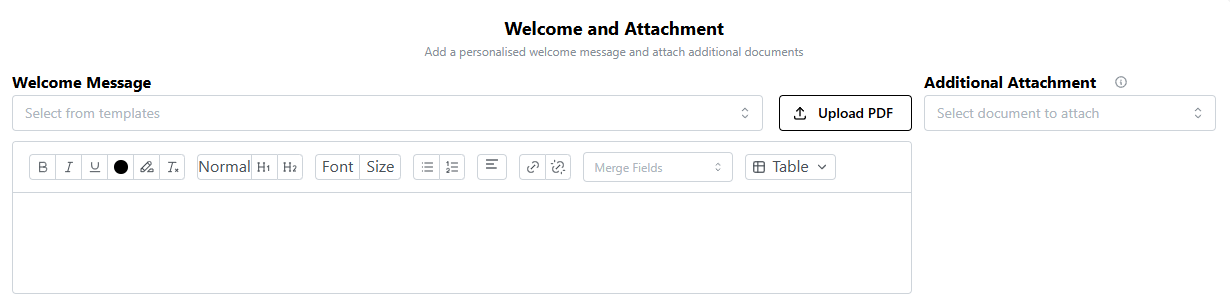
Then you can add a Welcome Message and any attachments that you would like to include with your proposal.
You can also customise the email that you will be sending to your client.
 You can also customise the email that you will be sending to your client.
If your proposal requires approval, select "Requires Approval", and select the approver from the list who will be a user from your firm.
Click "Next".
 Click "Next".
Now you can add your services and packages.
Select your package template (which has been created in your templates beforehand, or you can use our default options).
Now, you can simply add your services, and arrange them according to frequency if you would like to. You can also click the Include GST toggle if you would like to include GST in your pricing.
If you would like to add packages, click "Add Package" and you can select your template and services for that package.
You can edit the services and pricing in each package, to provide your client with various options.
If you would like to add a new service entirely, click "Add New Service", add in the service details that you would like to add and click "Save".
Click "Next" once you have completed your proposal services.
You can then specify your proposal terms and select STP authority if you'd like to.
Your proposal has now been created, so you can now review all of the details as a draft proposal.
You can click "Preview" to see the final proposal with all your attachments, notes etc., and if you are happy with it, click "Send to Client".
If you would like to download it, you can click "Options", "Download".
Still need help?
Contact us