
ID Verification in OnboardMe
OnboardMe offers ID Verification and AML checks to verify client identities and support compliance workflows.
To meet industry regulatory requirements, OnboardMe has partnered with ComplyCube for automated identity verification and AML screening (where your chosen method includes AML).
Before you start
Your practice must have ID Verification Methods configured (not None).
Automated ComplyCube checks require a balance in your Wallet (unless you use Annature-only verification with Annature connected).
Each verification has a cost. Review pricing under Settings ? Account ? Wallet.
To avoid other users being blocked when sending onboarding, proposals, or standalone verifications, consider enabling automatic wallet top-up.
Configure ID verification for your practice
In the main menu, open Settings, then Business, then System Settings.
Under ID Verification Methods, choose the method(s) your practice will use.
If you do not wish to use ID verification, select None.
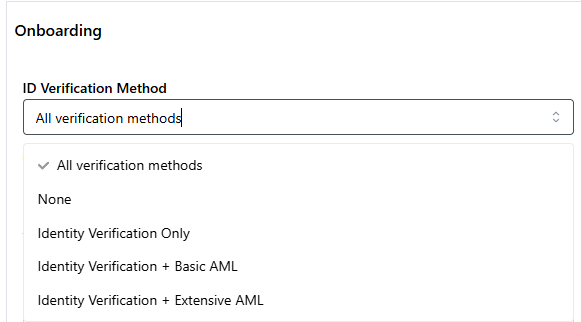
Each identity verification has a cost associated with it. Review pricing under Settings ? Account ? Wallet.
Verification methods (what each option means)
Available methods depend on your practice settings and wallet balance. When sending a verification, pick the check that matches what you need:
Identity Only - Document and biometric identity check. No AML screening.
Identity + Standard AML - Identity check plus standard AML screening (sanctions and PEP level 1, same style as a standard AML check in Compliance).
Identity + Extensive AML - Identity check plus extensive AML screening (broader PEP coverage, adverse media, and related lists).
Annature - Runs through Annature when that integration is connected (identity only or identity + AML, depending on the Annature option selected).
For more detail on what each check includes, see Identity & AML Checks Explained.
Ways to request ID verification
You can request identity verification in several places in OnboardMe. All paths use the same underlying checks, but where you start affects how the client completes verification and where you track progress.
1. Standalone ID verification (Compliance)
Use this when you only need to verify someone, without tying the check to onboarding, a proposal, or an eForm.
Open Compliance in the main navigation.
On the ID & AML section (or the ID Verification list), click New ID Verification.
Choose whether the person is an Existing client or an Associated person (for example a director or spouse who is not a full client).
Select the verification method, then send by email, SMS, or copy the client link.
Existing links the verification to a client already in OnboardMe. Associated creates a related record for verification and compliance only; they are not synced to integrations until promoted to an Active client.
For full step-by-step instructions (including upfront billing and Annature), see Send a standalone ID Verification (with optional AML Check).
2. Client onboarding
When capturing onboarding, each eligible individual can have Request ID Verification turned on with a method selected.
After onboarding is sent, the client completes verification as part of the onboarding journey. You can track progress on the onboarding stepper while onboarding is in progress.
3. Proposals (engagements)
When setting up a proposal, you can require identity verification for eligible individuals (individuals and sole traders) during proposal review.
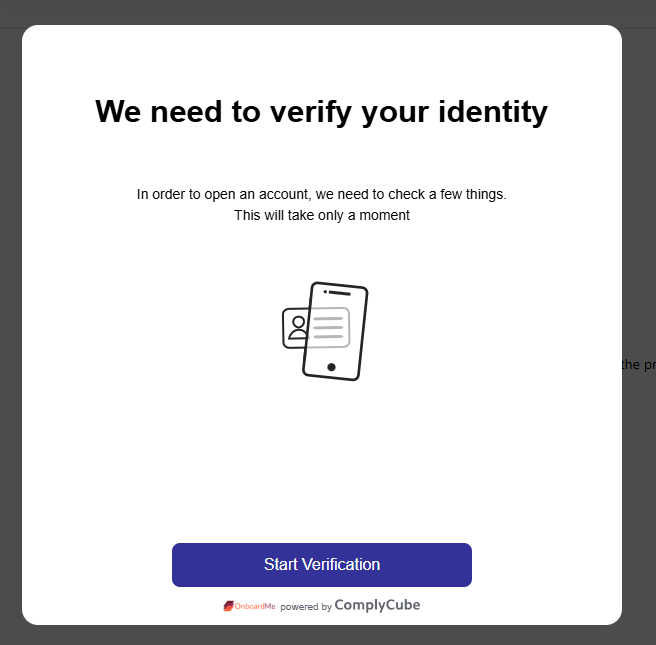
The client sees a Start Identity Verification step when they review and accept the proposal. Progress is managed through the proposal workflow until the proposal is complete.
4. eForms
An eForm can include an ID verification question so the recipient verifies identity while completing the form.
An eForm can only include one ID verification question (one recipient).
Progress is managed through the eForm until it is submitted.
What the client sees
When identity verification is requested, the client receives an invitation (email, SMS, or a link you share) and follows prompts to upload ID and complete a selfie check (or completes verification through Annature, if that method was selected).
Tracking and reviewing results
Where you review verification depends on how it was started:
Standalone - Open the record from Compliance or the ID Verification list. Resend email or SMS, copy the client link, and download reports when complete.
Onboarding - Use the onboarding stepper while onboarding is active.
Proposal - Use the proposal review / engagement workflow while the proposal is active.
eForm - Use the eForm response workflow while the form is open.
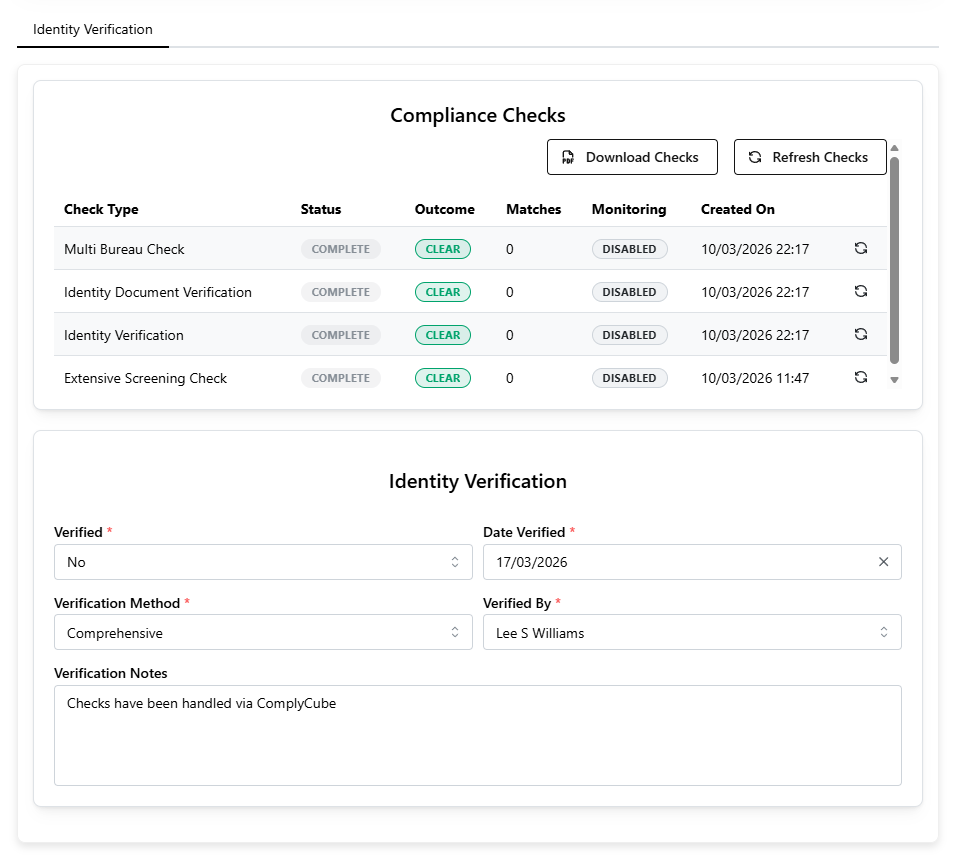
Once complete, identity and AML results (where included) appear in Compliance / Know Your Client for that person. To view verified documents, open the check and use Download Report.
If ID verification was left incomplete after a workflow finished
Sometimes ID verification is embedded in onboarding, a proposal, or an eForm, but the client did not finish verifying before that workflow ended.
If the linked onboarding, proposal, or eForm is already finished and verification is still incomplete, open the verification from Compliance and use Change to normal verification. This lets the check run on its own (copy client link, resend, reminders) without an extra wallet charge. This is blocked while the linked workflow is still active.
Related articles
Still need help?
Contact us