
Extract and Import Client list from MYOB AE (Accountants Enterprise)
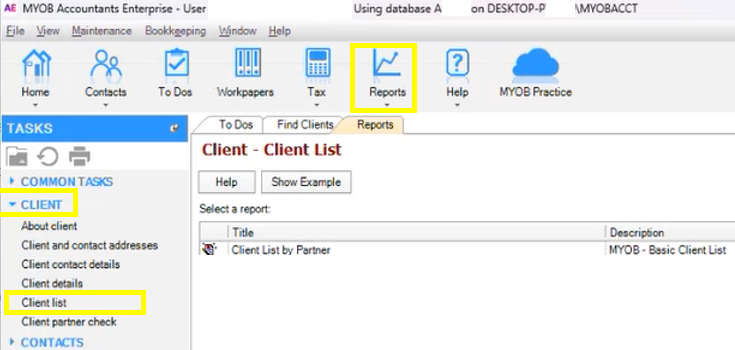
1) In your MYOB AE, to export the client list file, please click Reports > Client > Client List.
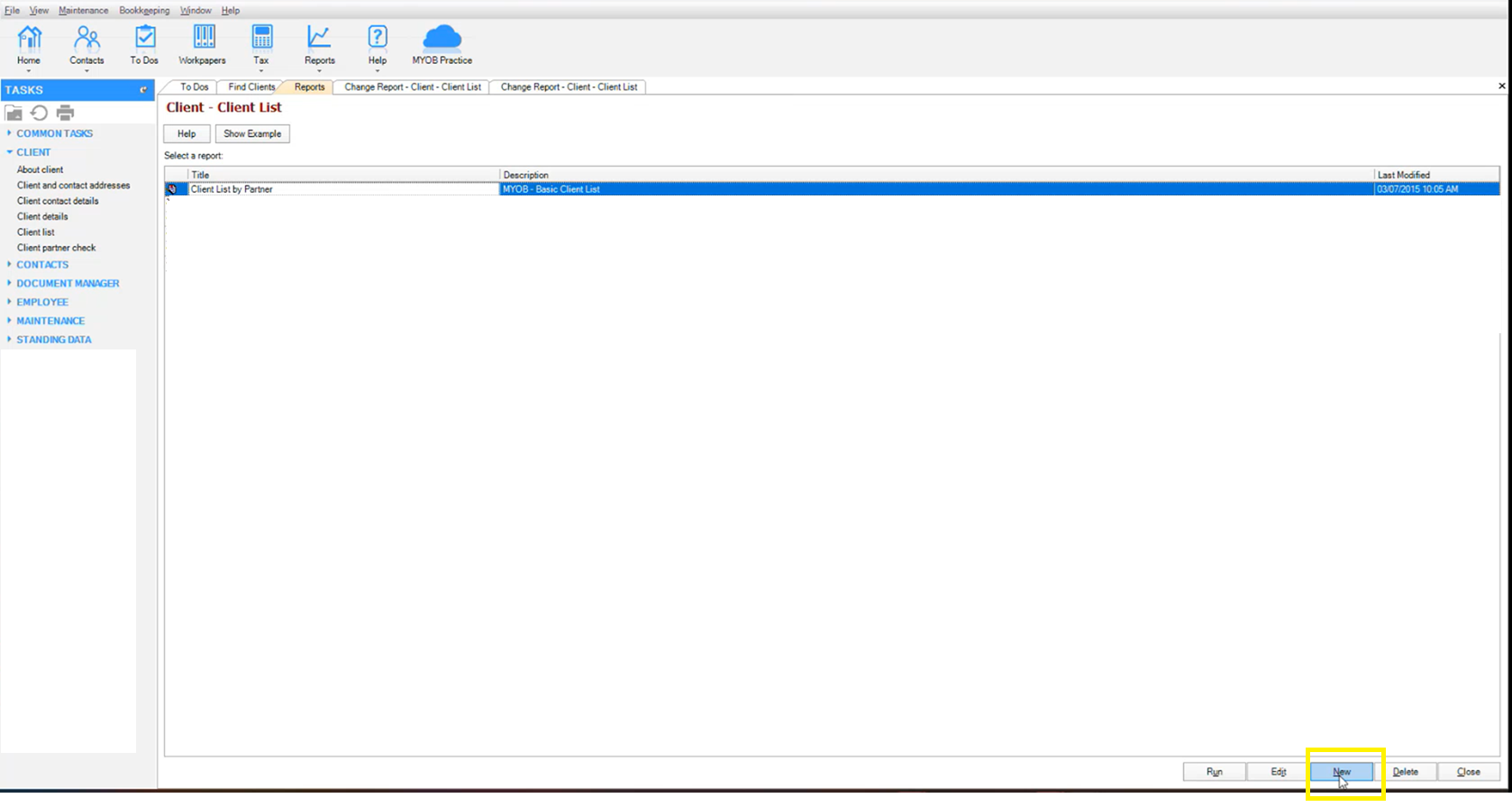
2) Then in the lower right side, please click the "New" button to create a New Report.
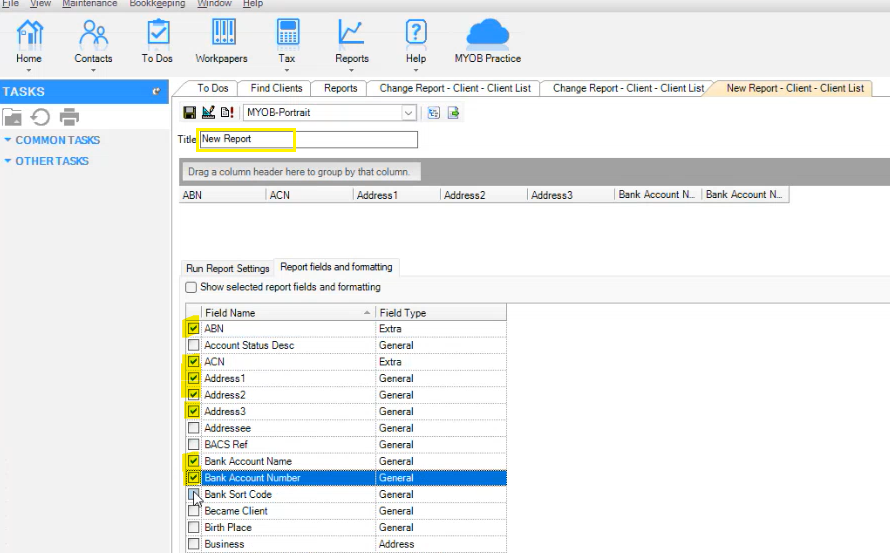
3) In the Title field, you can update or change the title of the new report that is being created. After that, you need to tick all the necessary checkboxes that is needed for the client export.
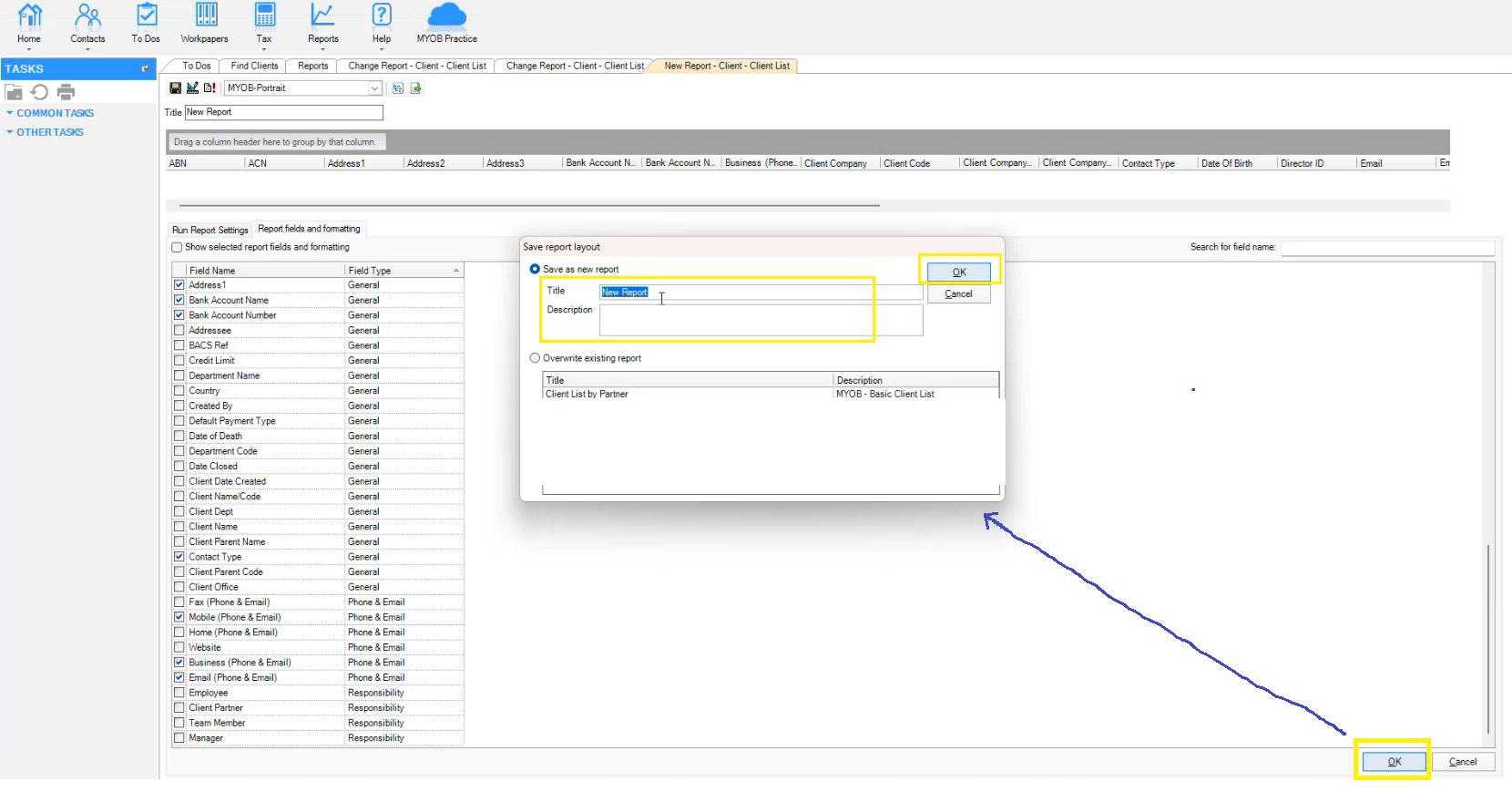
4) In the lower right side, click "OK" so that the pop-up selection box "Save report layout" will appear, then select "Save as new report". You can change/update the report Title and Description and then click "OK" to save the report layout.
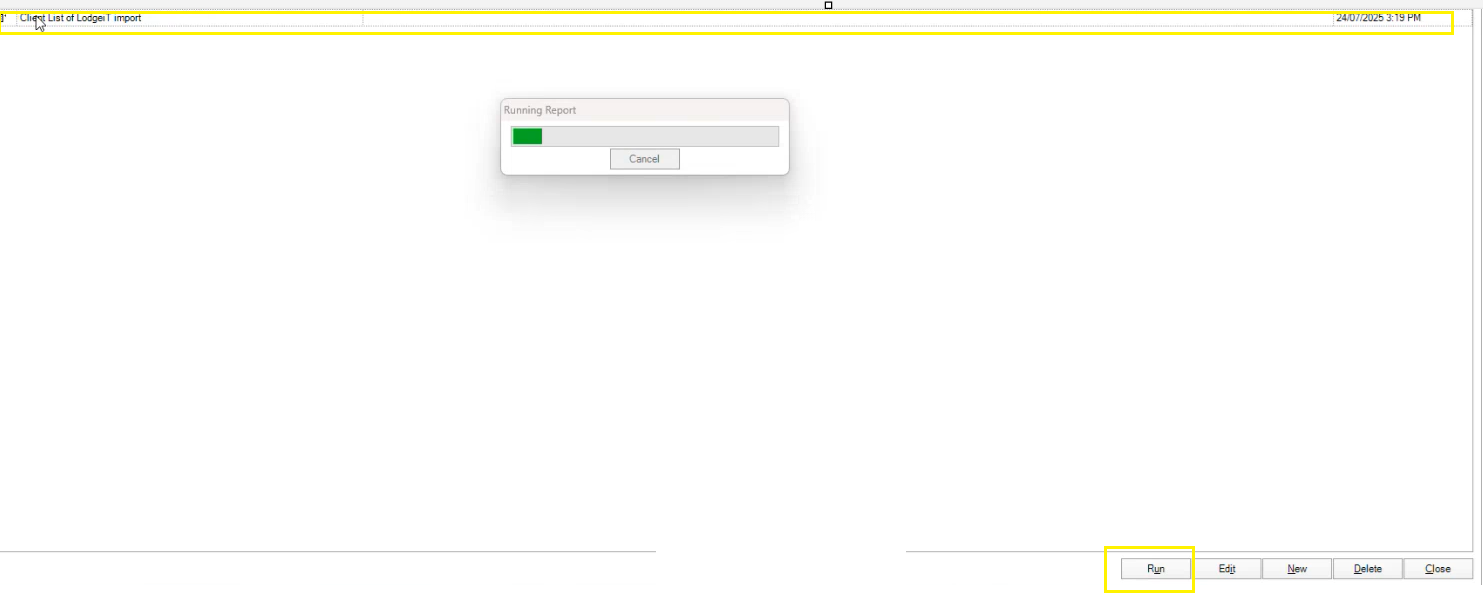
5) Select the report and then double click it or click Run to run the report.

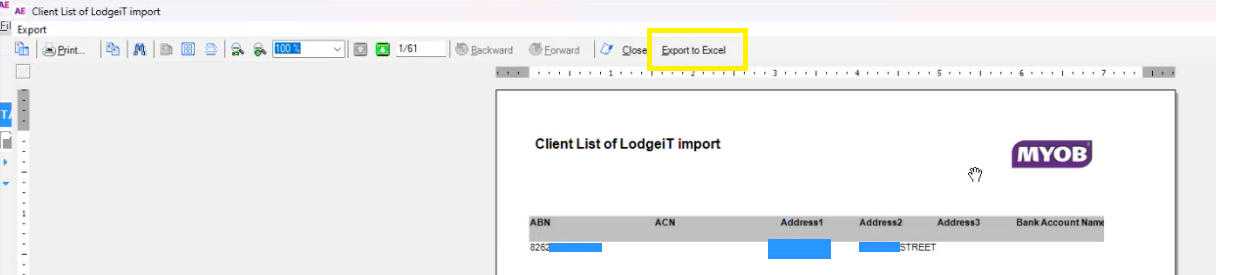
6) Click "Export to Excel" button to get the excel copy of the client list.
A new excel file like below will appear and this is the client export file that is needed for the OnboardMe Client Import.
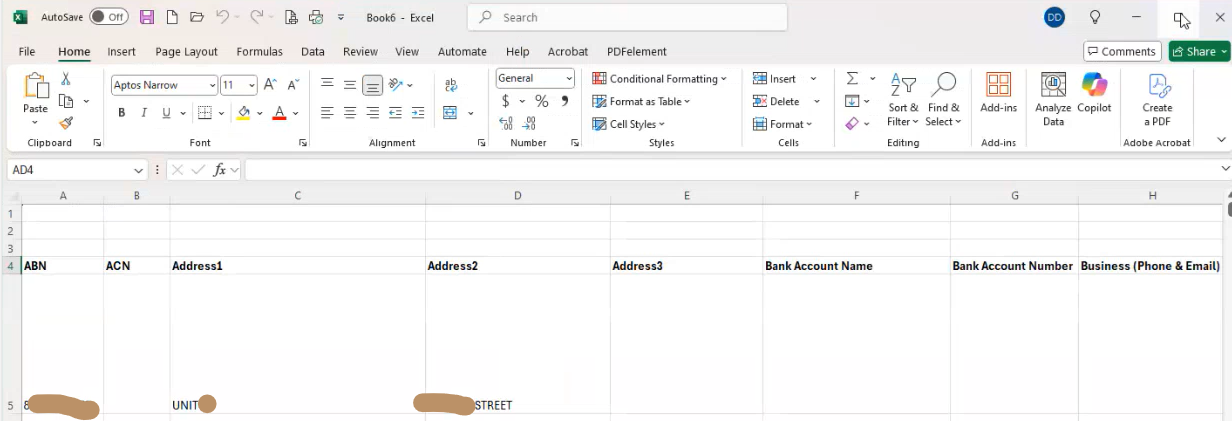
Once Exported, you can import the client sheet into the Settings / Data Hub area.
Still need help?
Contact us