
OnboardMe allows firms to create Jobs in XPM based on Accepted Engagements
Jobs in XPM can be created in 1 of 2 ways:
Job Templates
User Created Job with Tasks
Both methods require Jobs and Tasks Templates to be setup in XPM.
Mapping Job templates to Engagement Services
To streamline job creation when creating proposals, Job Templates can be mapped to OnboardMe proposal Services.
Navigate to Templates / Proposals / Services & Packages.
When XPM is enabled, an XPM Sync will be visible as well as an XPM Job Template column.
Clicking the XPM Sync button will initiate a download of XPM Jobs and Tasks from XPM (These are downloaded every hour automatically as well in the background).
Mapped services will show a Change XPM Template button, unmapped services will show.
To map or remap a service to an XPM Job Template, click the button and select the appropriate XPM Job Template.
Deploy Jobs with Proposals
When creating a new proposal with XPM Enabled, an XPM Jobs step will appear in the setup wizard when XPM Jobs is enabled.
On the Services step of the wizard, we select either a Package (collection of services) or Individual Services we want to offer to the customer.
When navigating to XPM Jobs, you are asked if you want to create jobs in XPM. It is not mandatory to create jobs in XPM with a proposal.
When choosing to create XPM Jobs, OnboardMe will check the services provided to the customer and suggest XPM Jobs to create.
You have the choice to use this suggested Job based on the Template Used, delete or edit it to your liking.
To add an additional Job, click the Add New Job button
A new job requires the following information to be created:
Name
Start Date
Due Date
Job Reference (automatically generated from Proposal)
Budget
Client for this Job (select either an existing client or a new client being onboarded with this proposal)
Partner
Manager
Staff (select multiple to assign multiple staff)
Description
Job Tasks or Job Template (job templates contain predefined tasks, single tasks can be grouped together)
Once you have configured your XPM Job, click Save. Once a Job shows as Greyed out, it has been saved.
Job Creation in XPM
Jobs setup in Proposals are not sent to XPM until one of the following has happened:
Existing Client accepts the proposal (this may include paying an upfront invoice).
The Jobs are created in XPM as soon as the proposal is Accepted.
A new client has accepted (and paid) a new Proposal and then completed their Client Onboarding.
Jobs will not be deployed to XPM Until the Onboarding is completed, this allows you to collect all the required client details for each client being onboarded with a Job being deployed before the Client is created in XPM.
Once the onboarding completed, the Client and Jobs are created in XPM.
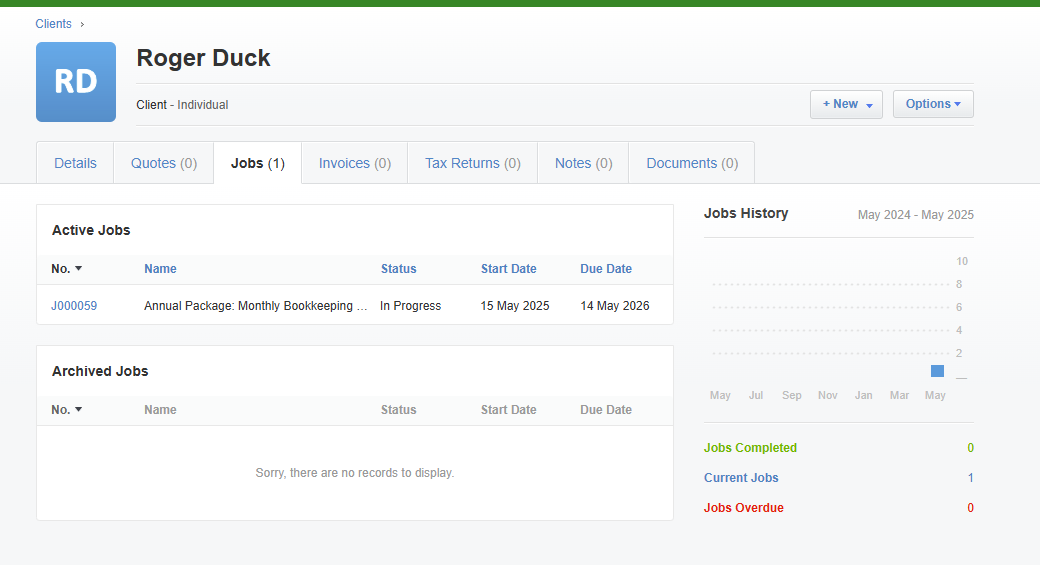
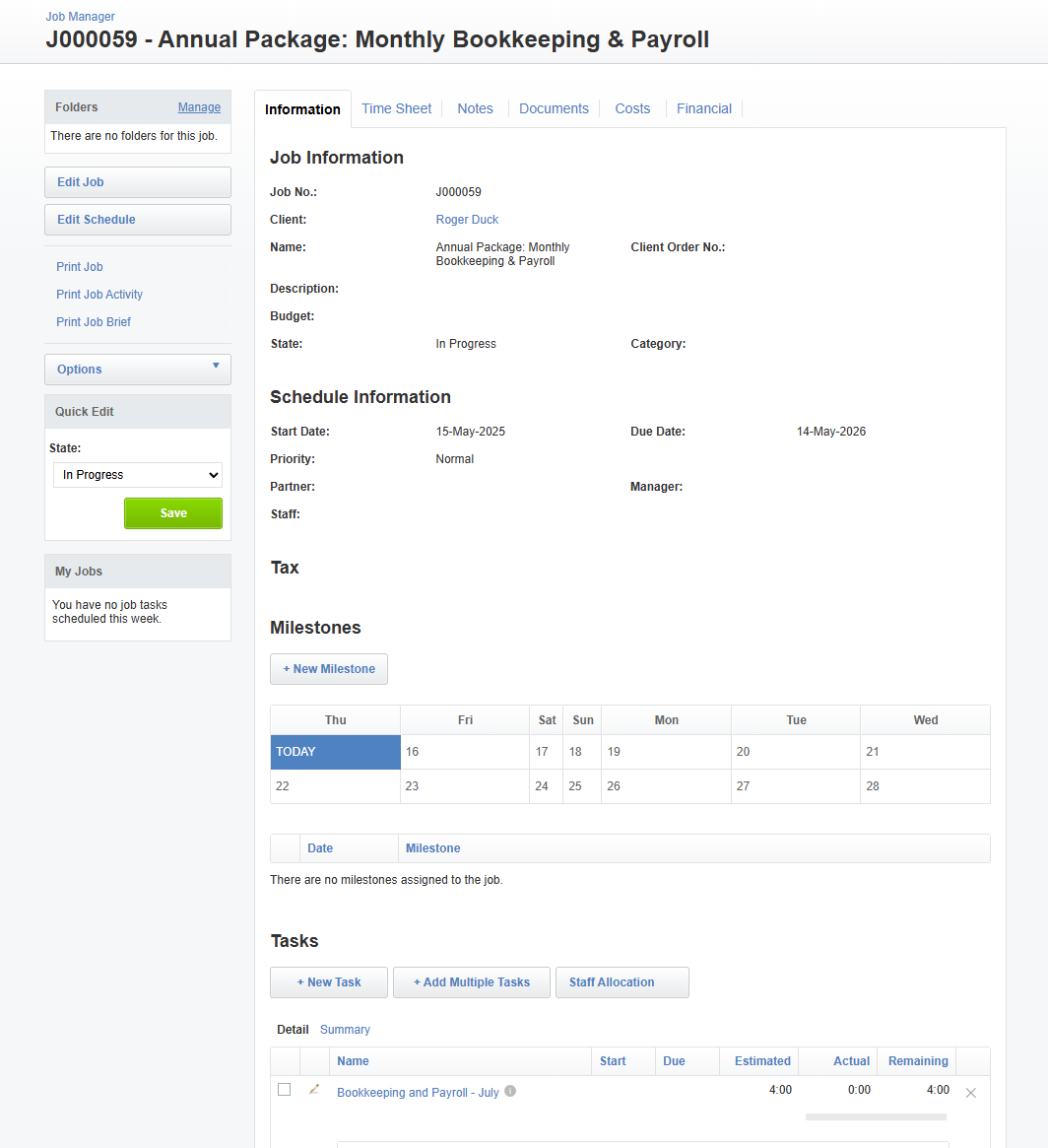
Jobs deployed to XPM from a Proposal can be seen on the Proposal Summary screen when opening a Proposal.
Click the Xero Icon to open the Job in XPM.
If the Proposal has been accepted, but the Onboarding has not yet been completed, the Jobs will show as Pending.
Still need help?
Contact us