
Client integration (Xero Practice Manager)
OnboardMe downloads clients from Xero Practice Manager (XPM) during initial connection, a manual Sync XPM run, and a background job that runs about every hour. Each run pulls XPM clients changed in roughly the last 60 minutes and applies updates to matched records.
Matching XPM clients to OnboardMe clients
When XPM clients are imported, OnboardMe tries to link them to existing clients in this order:
Already linked
ABN (business number)
ACN (company number)
Email + name — the email must match and the name must be a strong match (including sensible handling for individuals/sole traders)
If a match is found, the client is linked and updated in OnboardMe.
If no match is found and the XPM client has an email address, a new OnboardMe client is created and linked to XPM.
If the XPM client has no email, it is not auto-created in OnboardMe (it remains available for manual linking).
Email-only matches (same email, different name) are not auto-linked, to reduce duplicate links. Those XPM clients may need to be linked manually from the integration screen.
OnboardMe → XPM (new and updated clients)
When a client is created or updated in OnboardMe (manually, via onboarding, etc.) and XPM is connected:
OnboardMe searches XPM first (by name, with email, ABN, ACN, or TFN checks) before creating a new XPM client.
A match requires name plus at least one of: email, ABN, or TFN (last 3 digits).
If a match is found, the client is linked to the existing XPM record (no duplicate created in XPM).
If no match is found, a new client is created in XPM and linked.
Individuals and sole traders without an email are not pushed to XPM.
Ongoing sync
Direction | Behaviour |
|---|---|
XPM → OnboardMe | Matched clients updated on the hourly sync (and on full sync). |
OnboardMe → XPM | Changes to linked clients are pushed when saved in OnboardMe (including custom field values mapped to XPM). |
Custom field definitions are downloaded from XPM and matched to OnboardMe fields by name (new OnboardMe fields may be created automatically). Custom field values sync from XPM on client sync; changes in OnboardMe push back to XPM for linked, mapped fields (not while an inbound sync is running).
Staff (users)
XPM staff are downloaded on Connect and Sync XPM and matched to OnboardMe users by email. Links are used to map XPM Job Manager and Account Manager onto OnboardMe clients when syncing from XPM.
Family group integration
Action | Behaviour |
|---|---|
Download from XPM | Run Sync Groups (downloads group list and members from XPM). Also runs automatically on initial XPM connection and full Sync XPM. |
New group in OnboardMe | Created in XPM when members are added (group must exist in XPM). |
Members added in OnboardMe | Added to the corresponding XPM group (client must be linked to XPM). |
Members removed in OnboardMe | Removed from the XPM group. |
Changes in XPM | Downloaded into OnboardMe when Sync Groups (or full XPM sync) runs. Not part of the hourly client-only job. |
Job creation from proposals
Item | Behaviour |
|---|---|
Job templates | Downloaded on Connect, Sync XPM, or Sync Job Templates. Must be mapped to Engagement Services in OnboardMe. |
Tasks | Downloaded on Connect, Sync XPM, or Sync Tasks. Can be used when creating custom jobs in XPM from engagements. |
Creating jobs in XPM | Requires the OnboardMe client to be linked to XPM (XPM client UUID). Jobs are created from accepted engagements using mapped templates. |
Invoice creation (via Xero Ledger)
Invoices are pushed to Xero Ledger (Accounting), not to Practice Manager. This uses the Xero Ledger / XPM Blue integration in addition to XPM.
Invoice type | When it is pushed to Xero Ledger |
|---|---|
Pay now ( | When paid (e.g. card/direct debit), and/or when the engagement is accepted without taking payment at acceptance (if flagged to sync now). |
Future-dated (invoice date in the future, not “bill on completion”) | Automatically on the invoice date, via a daily job that runs at 1:00 AM server local time (for invoices not yet sent to Xero). |
Bill on completion | Not sent by the daily invoice job; handled separately when billing is completed. |
The client must be linked to Xero Ledger (contact exists in Accounting). Proforma branding/themes may apply for pay-now invoices where configured.
Requirement: The firm must have Xero Practice Manager and Xero Ledger connected. See Xero’s guide: Connect Practice Manager to Xero – Xero Central.
Connecting OnboardMe and Xero Practice Manager
Login to OnboardMe and navigate to Settings / Integrations. Available integrations for the country will be displayed in the Available Integrations.
Click Connect on Xero Practice Manager and login to Xero.
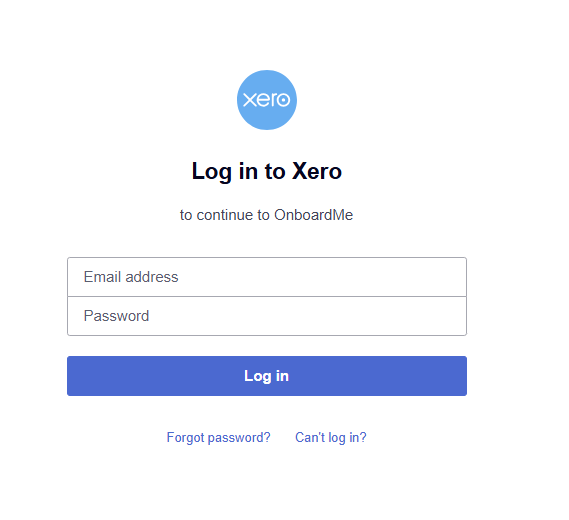
If you have access to multiple Xero Practice Manager instances, select the appropriate Instance you want to connect OnboardMe to when prompted.
Once the connection process has completed, OnboardMe will automatically download the Clients and Staff from XPM
Once connected successfully, Xero Practice Manager will now show under the Connected Integrations.
If you wish to integrate Groups, you can click the Sync Groups button to download the Groups from XPM into OnboardMe.
Client Integration
Once the matching process has completed, any unmatched Clients between the 2 systems will be created in OnboardMe.
To view XPM clients in OnboardMe, navigate to Clients and open a client.
When opening a client, if the client is connected with XPM, an XPM button will be visible.
When clicked, this will open the client in XPM.
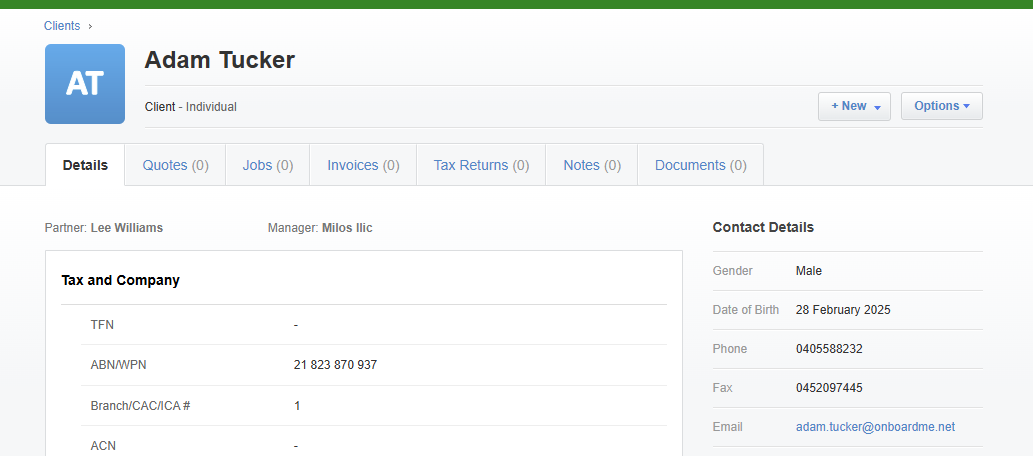
For Clients who Exist in OnboardMe but do not exist in XPM, A Link XPM button will be present.
If there are XPM Clients who we previously chose not to insert into OnboardMe (due to them sharing an email with a client but us being unable to match them on name), a modal will show up asking if you want to link this client to an existing XPM client or create a new client in XPM.
If no unlinked clients are found in OnboardMe, the system will automatically try and create a new client in XPM. If XPM responds that the client already exists, we will then try and match the client with XPM automatically.
NB: Sometimes the client creation process in XPM can be delayed, please give it 2-5 minutes if the XPM button does not open the client.
Onboarding new clients to XPM
New clients can be onboarding and created in XPM via Engagements with Onboarding, Onboarding or manually in OnboardMe.
Client onboarding is split into 2 parts:
Client side
Practice side
Client side is what the client completes and is fully branded to your practices branding selections.
Practice side is what you as the practice see and can edit what the client has submitted to you as well as complete fields such as ID Verification.
Only once an onboarding process has been completed by both the Client and the Practice, are clients created in XPM.
Refer to the Onboarding request help article for further information: Send an onboarding request | onboardme help center
XPM Job Integration
OnboardMe integrates XPM Jobs and XPM Tasks with our Engagement engine.
Please refer to the XPM Job Integration help article for more information: XPM Job Integration | onboardme help center
Still need help?
Contact us