
OnboardMe has integrated with Pinch Payments to enable payment processing on our platform.
If you are an existing Pinch customer continue with this article. If you are new to Pinch, please follow this article: Pinch Payments - Setup a new Pinch Account | onboardme help center
To enable Payments in the OnboardMe Platform, navigate to Settings / Business.
The Payment Settings screen allows you to determine if you want to accept payments in OnboardMe. All Payment Options are disabled until a Payment Vendor is selected and you have verified your Pinch Account.
Selecting Pinch Payments will show the Pinch functionality like Set Up Account and Status Indicator.
When Clicking Set Up Account, you will be asked to confirm if you are an existing Pinch Payment Customer or not.
If you are an existing Pinch customer, click Yes. This will show the API Key inputs for you to add in your Pinch API Keys to work with OnboardMe.
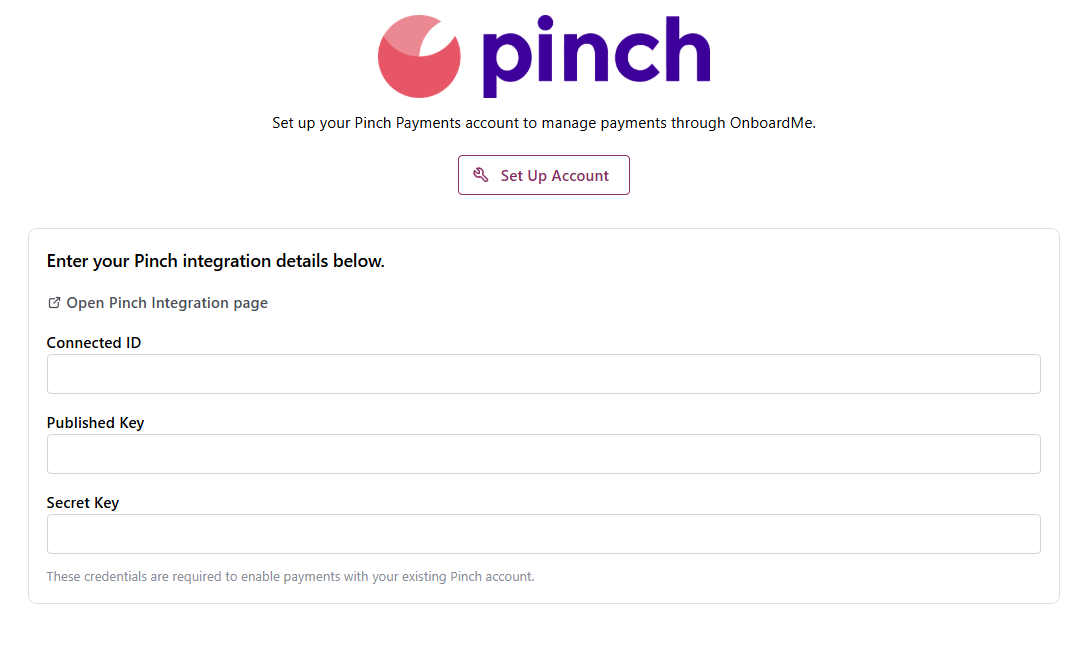
Click the Open Pinch Integration page hyperlink, this will take you to Pinch Payments to the Integrations page.
If for some reason you are not taken directly to the Integrations screen, select "Integrations" from the left-hand menu inside of Pinch.
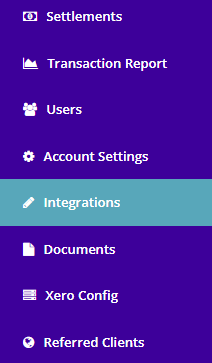
Here you will see your API Keys on the far right of the screen.
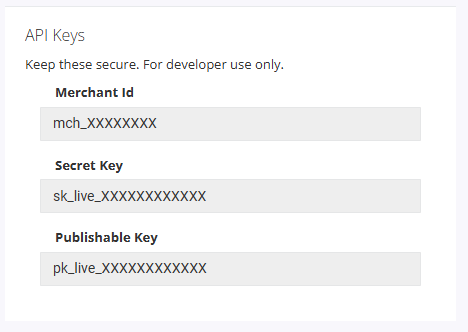
Copy these 3 values into OnboardMe and click Save.
Once Saved, click the Refresh Status button to confirm the connection with Pinch is active. It should change from New to approved.
Once Pinch and OnboardMe are connected, please make sure to follow this guide for configuring Pinch for Automated payments.
Best practices for taking Payments using Pinch Payments | onboardme help center
OnboardMe and Pinch are now configured for Payments!
If you run into any issues, please reach out to us at [email protected]
Still need help?
Contact us