
Send a single Ethical Letter
Use Ethical Letters to send a professional clearance request to a previous accountant, optionally request documents from them, and optionally attach practice PDFs to the outgoing letter.
Open Ethical Letters
Click the Ethical Letters menu option.
[Screenshot: Ethical Letters menu]
This opens the Ethical Letters screen where you can view existing letters and create new ones.
Click New Ethical Letter to start the New Ethical Letter process.
Set up the letter and email
To send a new Ethical Letter, complete:
Accountant Name
Accountant Email
Business Representative(optional - only if sending on behalf of another user in OnboardMe)
Client Name
Email Template (customise for this letter, or manage the Ethical Letter email template under Templates / Emails)
You can also link the clearance to clients in OnboardMe where needed, then continue through the remaining setup sections on the same screen.
Documents and files
In the Documents & files section you can use either option, both, or neither. They do different things:
Request from accountant - ask the previous accountant to upload named documents when they respond
Send with your letter - attach PDFs from your practice library so they go out with the letter
Request documents from the accountant
Turn on Request documents.
Use the edit icon to open the Requested Documents list.
Add the document names you need (for example bank authority, prior year tax return).
If you have set up templates, use Refresh from templates to load your practice list from Templates > Document Templates > Ethical Letter Documents.
Save the list. Requested items appear as badges under the switch.
When the previous accountant responds, they see those requested documents and can upload files, mark items they are not providing, and optionally add additional documents.
Send attachments with your letter
Under Send with your letter, pick one or more PDFs from your Ethical Letter Attachments library.
Manage that library in Templates > Document Templates > Ethical Letter Attachments (Owner/Admin).
Attachments are files you send out with the letter. They are not the same as documents you request the accountant to upload.
Customise the Ethical Letter
Once setup fields, email, and any documents or attachments are ready, customise the letter template and email.
To customise Ethical Letter templates, see: Ethical letter templates.
If you have only one Ethical Letter template, OnboardMe selects it automatically. If you have more than one, choose a template to populate the editor.
After you select a template, it loads into the Template Editor.
Edit the letter as needed, then continue to Preview letter to review the merged letter.
When you are ready, click Send. To finish later, click Save & Close to keep a draft. Open a draft again from the Ethical Letters table.
Step 3: Review pending or completed letters
After sending, the status updates to Sent. When the previous accountant opens it, the status updates to Opened.
Opening an Opened letter shows a summary: who it was sent to, requested document progress, any uploads, and options to complete the clearance yourself if the previous accountant contacted you outside OnboardMe (for example by phone or email).
The Activity Timeline shows when the letter was sent and when it was accessed.
Download uploaded files with the download control for each file. You can delete files after downloading if needed.
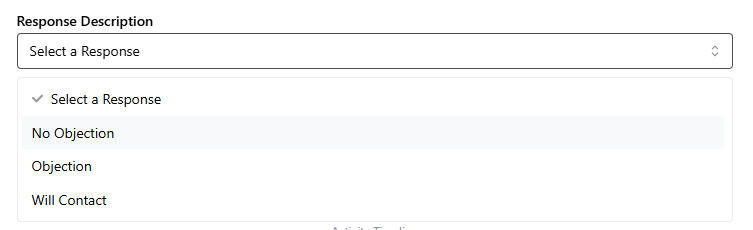
To accept the Ethical Letter on behalf of the previous accountant, choose a response, enter any notes, and click Complete.
Cancel an Ethical Letter
If you need to cancel a sent Ethical Letter, click Cancel Ethical. This cancels the letter and blocks access for the previous accountant.
Related
Document Templates (new draft - publish from Help.center when ready)
Request documents during onboarding (new draft - publish from Help.center when ready)
Still need help?
Contact us